

What Is ICP Search and How it works
Definition:ICP Search is a tool for finding companies and contacts that perfectly match your Ideal Customer Profile. It allows you to build a highly targeted dataset based on real company and contact attributes. How it works:
- You define criteria for companies or leads using filters.
- Company filters include:
Industry, Location, Headcount, Company Name, Founded Year, Website Status - Lead filters include:
Job Title, Personas, Skills, Location, Number of Leads per Company, Number of Connections, Data Accuracy Period
- Company filters include:
- Generect searches through cached databases or live data depending on availability.
- The system returns a refined list of companies or contacts that match your ICP.
- You receive a set of verified leads ready for outreach.
- Accurate targeting: results match your ICP parameters as closely as possible.
- Flexible filtering: combine multiple criteria to shape an exact company or contact profile.
- Fresh data: Generect returns cached or live results depending on what’s available.
- Exclude lists: remove unwanted companies or existing clients from your results.
- Custom Search: use your own LinkedIn profiles, domains, or company lists.
How to Build an ICP Search Query
Step 1: Start a New Search
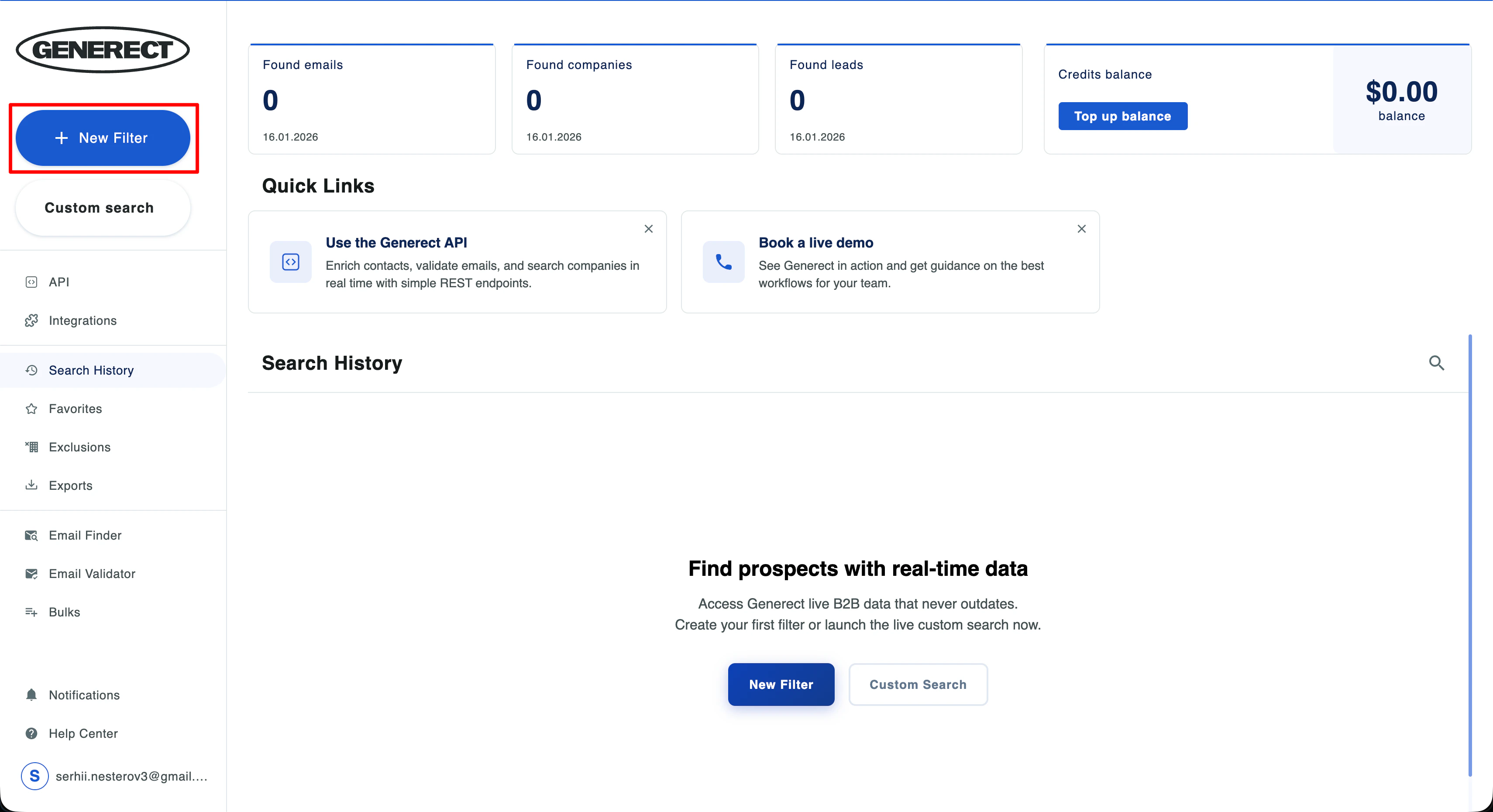
This opens the full list of filters you can use to build your ICP.
Step 2: Choose your filters
All filters are universal and they work for both companies and leads.- Job Title – search for specific roles
- Personas – predefined role templates (Executive, Sales, Engineering, Marketing) that speed up ICP setup
- Skills – find people with specific expertise (Python, SalesOps, Product Management, etc.)
- Number of leads per company – limit contact volume per company
- Number of connections – helpful for B2B outreach (more active profiles)
- Data accuracy period – filter by freshness of data
- Company name – useful for competitor lists or known targets
- Location – for companies or contacts
- Industry – narrow down your market segment
- Headcount – company size
- Founded year – young or mature companies
- Specialities – company expertise areas (Legal Services, IT Consulting, Manufacturing)
- Website status – active/inactive sites
Step 3: Run the search
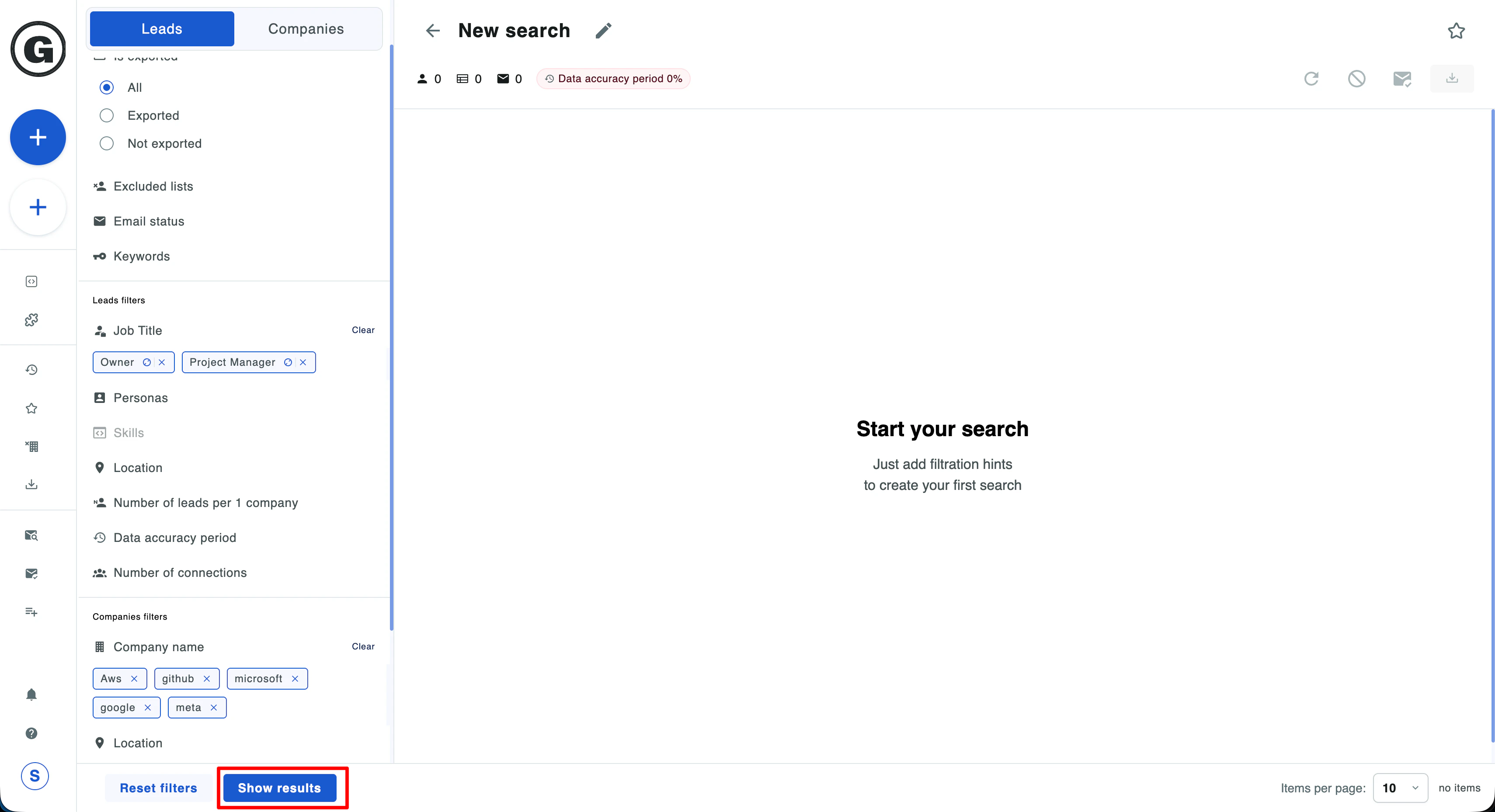
- Start the search
- Review your results
- Adjust filters as needed
- Reveal contacts to get verified emails and phone numbers
Step 4: Choose Leads or Companies view
You can view your results in two modes: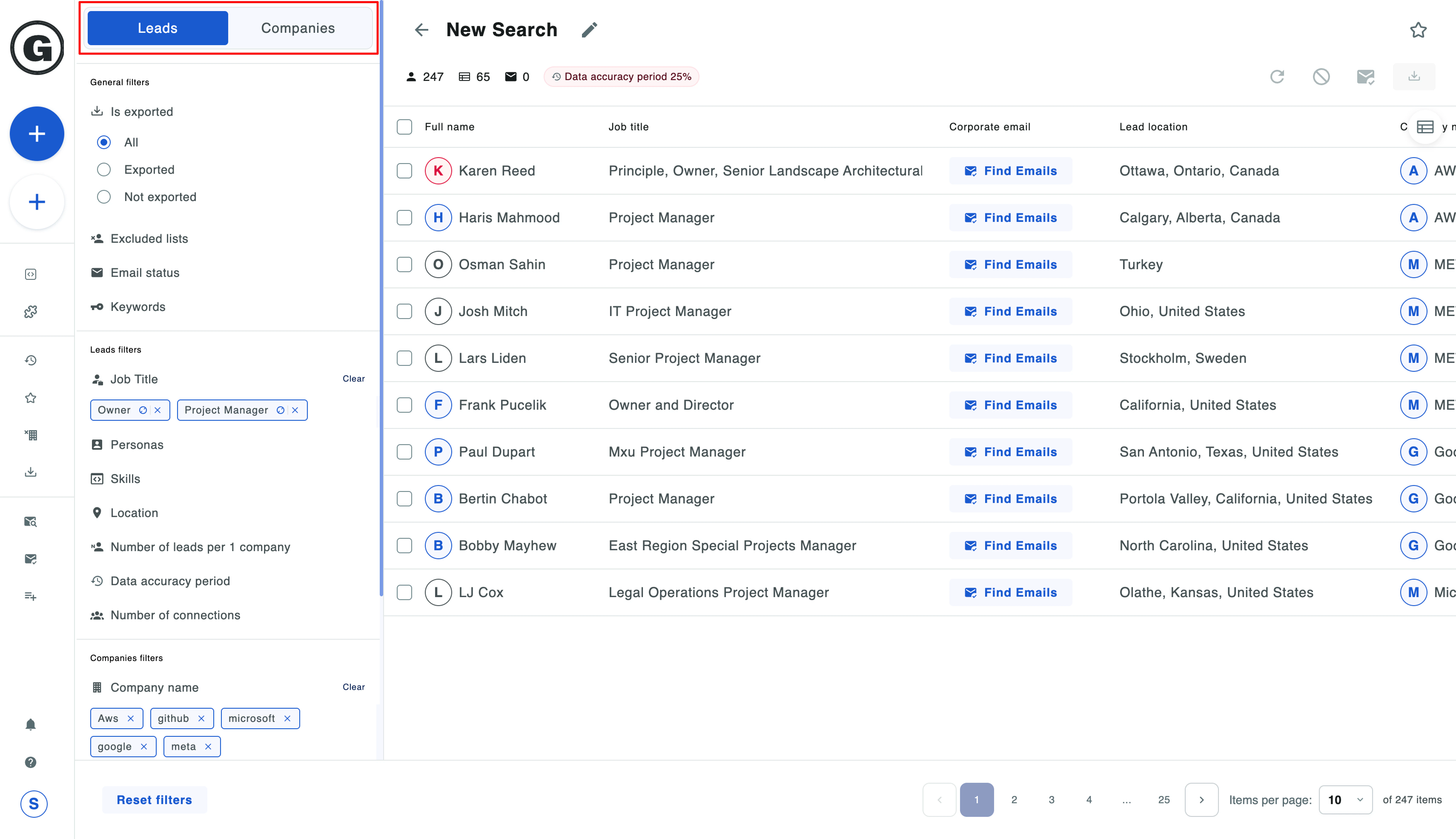
- Leads – a list of contacts that match your criteria
- Companies – a list of companies that match the same filters
Use Case: Finding Engineering Leads in German IT Services
See a real-world example of building an ICP search
Advanced Filters for ICP Search
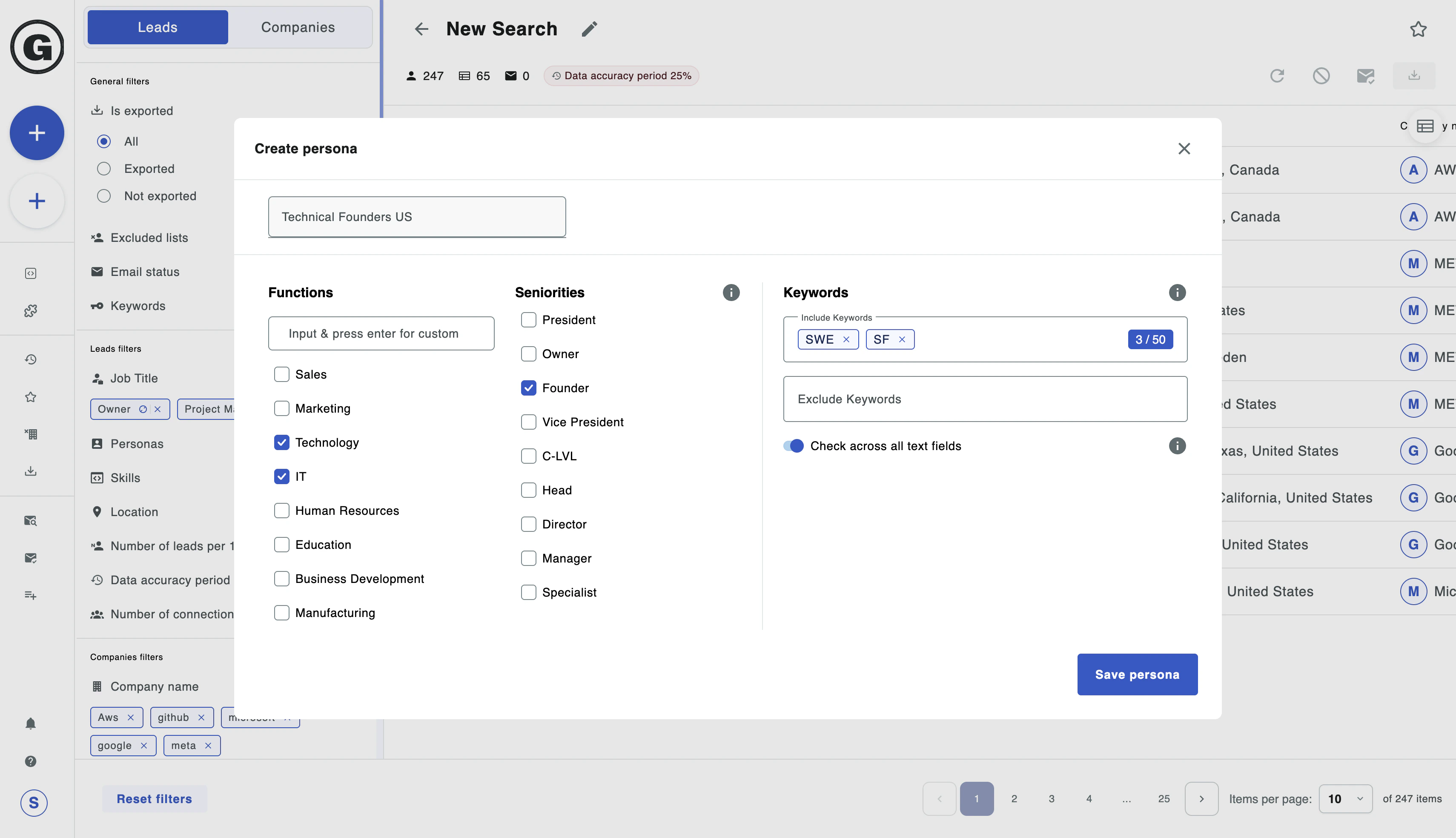
Advanced filters allow you to build a more precise ICP, narrow your dataset to the most relevant companies and leads, and reuse your configurations later.Personas (Reusable Role Templates)
A persona is more than a set of job titles – it’s a saved role template you can use in any ICP Search. A persona may include:- Functions:
Sales, Marketing, Technology, IT, HR, Education, Business Development, Manufacturing, or custom functions. - Seniorities:
President, Owner, Founder, VP, C-Level, Head, Director, Manager, Specialist. - Keywords (include/exclude):
For fine-tuning profile descriptions or job titles.
- “Sales Leadership EU”
- “Technical Founders US”
- “HR Directors Global”
Use Case: Using Personas for SDR Workflows
Learn how SDRs save time with reusable persona templates
Skills & Specialities (Expertise-Based Filtering)
Search by skills of individuals or by the specialisation of companies. Skill examples: Python, Cloud, Prospecting, SQL, DevOps, SalesOpsSpecialities examples: IT Consulting, Legal Services, Education, Manufacturing Useful when searching for contacts with specific expertise.
Profile & Data Quality Filters
- Data accuracy period: how fresh the data should be
- Number of connections: approximate activity level of the profile
- Number of leads per company: control dataset density
Exclude Lists
Exclude companies or leads you don’t want to see in your results. You can upload a CSV with:- existing customers
- competitors
- unwanted segments
Learn More About Exclude Lists
Deep dive into using exclude lists effectively
Custom Search (Advanced Manual Targeting)
Use your own data sources:- LinkedIn profiles
- Domains
- Company names