> ## Documentation Index
> Fetch the complete documentation index at: https://docs.generect.com/llms.txt
> Use this file to discover all available pages before exploring further.
# Remote MCP (Custom Connectors)
> Connect to Generect MCP via Custom Connectors - no local installation required
Remote MCP servers extend AI capabilities beyond your local environment, providing access to internet-hosted tools and data sources. By connecting to Generect's remote MCP server, you can access lead search, company search, and email generation directly in your AI conversations without any local installation.
Remote MCP works with Claude (web and Desktop) and other MCP-compatible
clients. For local installation via npx, see{" "}
Local MCP (npx).
***
## Server Information
| Property | Value |
| --------------- | ------------------------------ |
| **Registry ID** | `com.generect/generect-mcp` |
| **Remote URL** | `https://mcp.generect.com/mcp` |
| **Transport** | Streamable HTTP |
| **Auth** | OAuth 2.1 or API Key |
***
## Claude Desktop — Custom Connectors
Claude documentation states:
**Custom connectors are available for users with paid plans (Pro, Max, Team, or Enterprise).**
This may change in the future, but for now this restriction applies.
Open [Claude Desktop](https://claude.ai/download). Click on your profile icon and select **Settings** from the dropdown menu. Then click on **Connectors** in the sidebar.
Scroll to the bottom and click **Add custom connector**.
Enter the Generect MCP server URL:
```
https://mcp.generect.com/mcp
```
Leave Advanced settings empty.
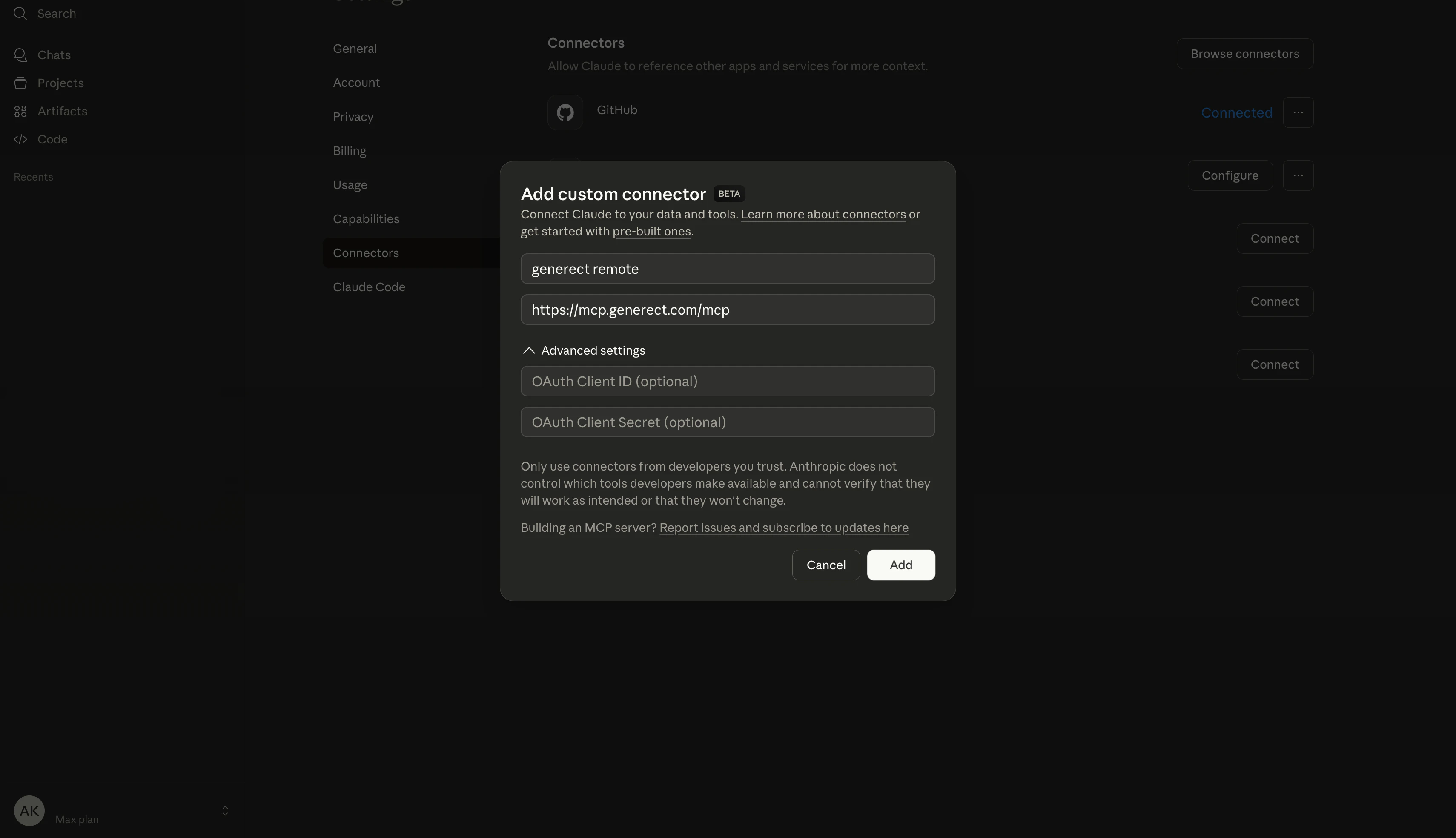 Click **Add** to proceed.
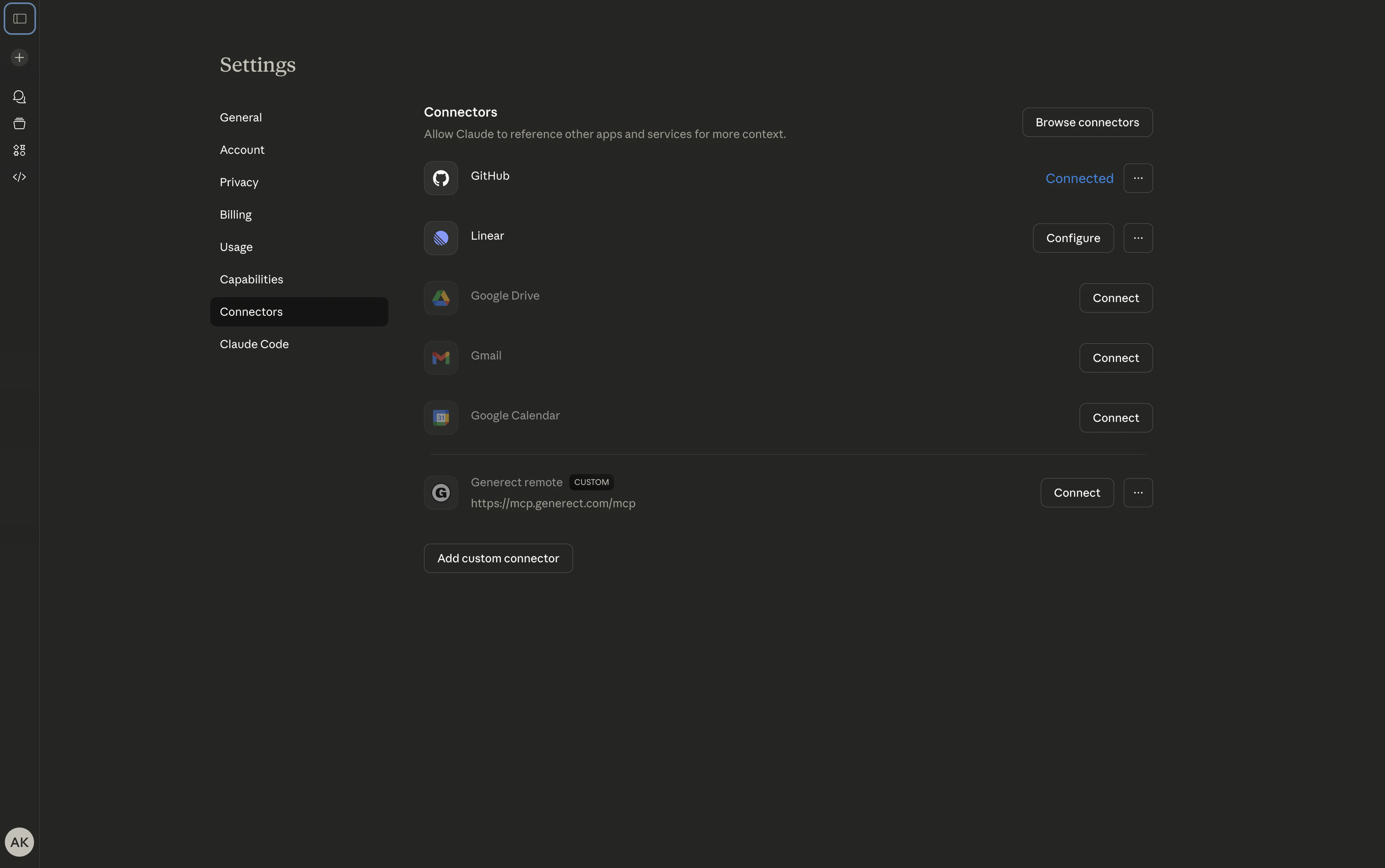
Then click on "Connect". You will be redirected to login page.
Click **Add** to proceed.
Then click on "Connect". You will be redirected to login page.
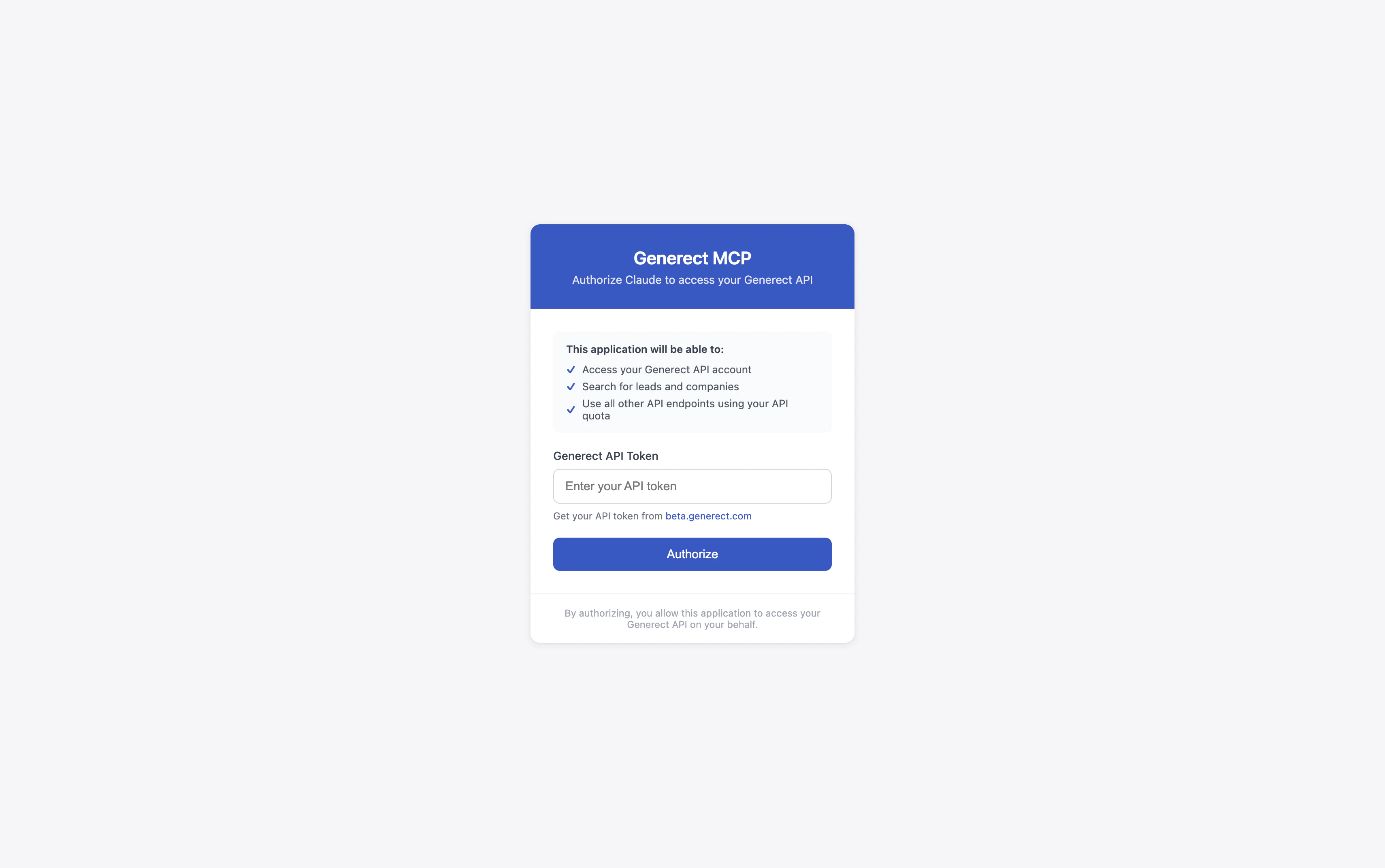
 Get your API key from beta.generect.com and enter it on the login page.
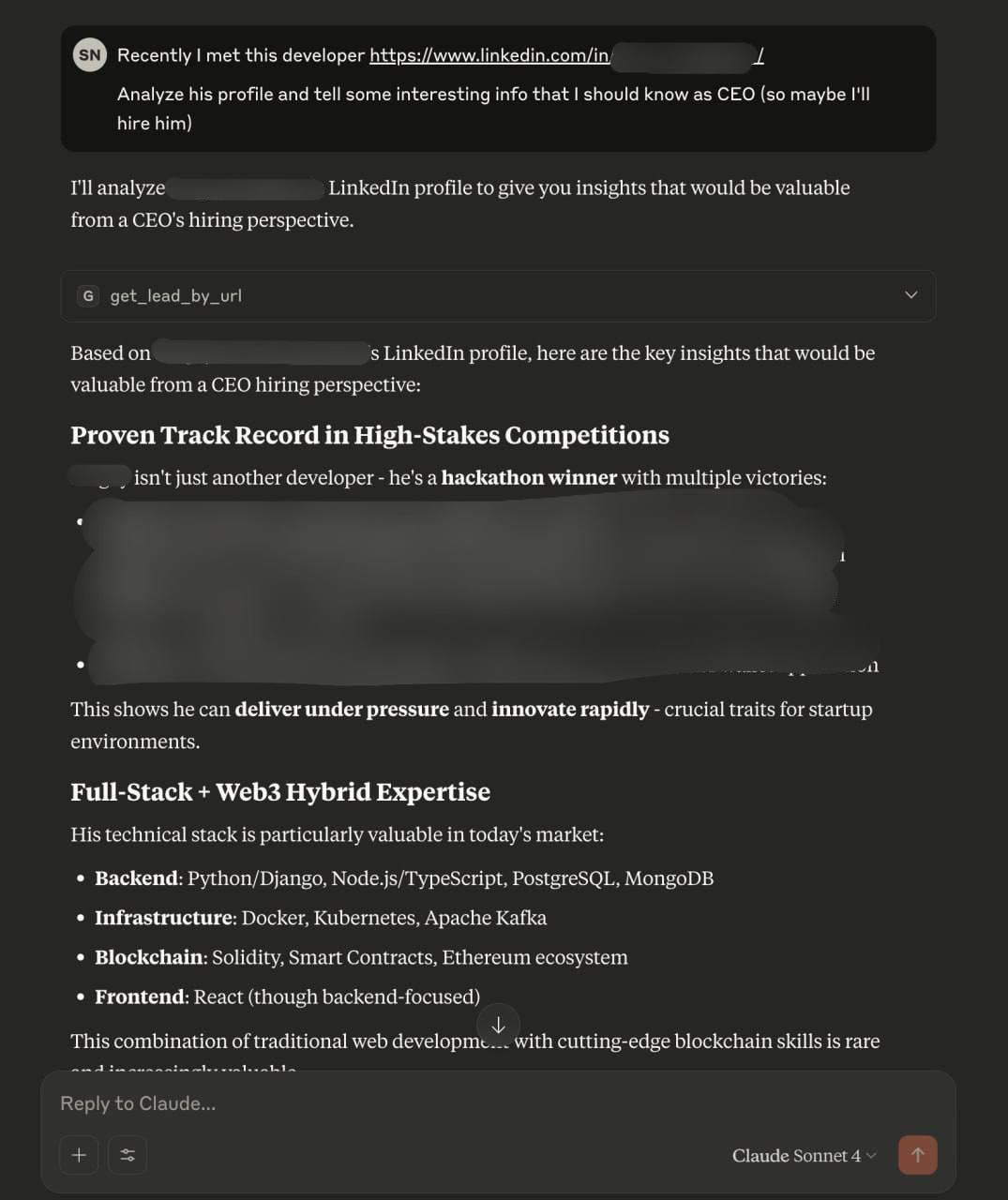
 Now you can use Generect MCP server. Make sure that you have enabled it in Connectors tab.
 ***
## Other Clients (Cursor, OpenAI, etc.)
Integration with other MCP-compatible clients follows the same pattern:
1. **Find the MCP/Connector settings** in your client
2. **Add a remote MCP server** with URL: `https://mcp.generect.com/mcp`
3. **Configure authentication** with your API key (see formats below)
Each client has its own configuration method — look for "MCP", "Connectors",
or "Tools" in settings. Some clients may require editing a config file, others
provide a UI.
### Supported `Authorization` header formats
If your client passes the API key directly via an `Authorization` header (no OAuth flow), the server accepts any of:
```
Authorization: YOUR_API_KEY
Authorization: Bearer YOUR_API_KEY
Authorization: Token YOUR_API_KEY
Authorization: Bearer Token YOUR_API_KEY (legacy, still supported)
```
Pick whichever format your client makes easiest. Example for `mcp-remote`:
```json theme={null}
{
"mcpServers": {
"generect": {
"command": "mcp-remote",
"args": [
"https://mcp.generect.com/mcp",
"--header",
"Authorization: Bearer YOUR_API_KEY"
]
}
}
}
```
***
## Remote MCP vs Local MCP
| Feature | Remote MCP | Local MCP (npx) |
| -------------- | ------------------------- | ---------------------------- |
| Installation | None required | Requires Node.js & npx |
| Configuration | URL or registry ID | Command + args in config |
| Access | Any MCP-compatible client | Requires local setup |
| Offline access | Not available | Available (with cached data) |
| Updates | Automatic | Manual (`@latest`) |
Choose **Remote MCP** for simplicity and accessibility. Choose **Local MCP** if you need offline capabilities or have network restrictions.
***
## Available Tools
The MCP integration provides access to the following `Generect API` functions:
* `search_leads`: Search for leads by ICP filters
* `search_companies`: Search for companies by ICP filters
* `generate_email`: Generate an email using first/last name and domain
* `get_lead_by_url`: Get LinkedIn lead by profile URL
* `health`: Quick health check against the API
***
## MCP Registry
Generect MCP is registered in the official MCP Registry:
```
com.generect/generect-mcp
```
* **Registry**: `com.generect/generect-mcp`
* **Repository**: [github.com/generect/generect\_mcp](https://github.com/generect/generect_mcp)
***
## Other Clients (Cursor, OpenAI, etc.)
Integration with other MCP-compatible clients follows the same pattern:
1. **Find the MCP/Connector settings** in your client
2. **Add a remote MCP server** with URL: `https://mcp.generect.com/mcp`
3. **Configure authentication** with your API key (see formats below)
Each client has its own configuration method — look for "MCP", "Connectors",
or "Tools" in settings. Some clients may require editing a config file, others
provide a UI.
### Supported `Authorization` header formats
If your client passes the API key directly via an `Authorization` header (no OAuth flow), the server accepts any of:
```
Authorization: YOUR_API_KEY
Authorization: Bearer YOUR_API_KEY
Authorization: Token YOUR_API_KEY
Authorization: Bearer Token YOUR_API_KEY (legacy, still supported)
```
Pick whichever format your client makes easiest. Example for `mcp-remote`:
```json theme={null}
{
"mcpServers": {
"generect": {
"command": "mcp-remote",
"args": [
"https://mcp.generect.com/mcp",
"--header",
"Authorization: Bearer YOUR_API_KEY"
]
}
}
}
```
***
## Remote MCP vs Local MCP
| Feature | Remote MCP | Local MCP (npx) |
| -------------- | ------------------------- | ---------------------------- |
| Installation | None required | Requires Node.js & npx |
| Configuration | URL or registry ID | Command + args in config |
| Access | Any MCP-compatible client | Requires local setup |
| Offline access | Not available | Available (with cached data) |
| Updates | Automatic | Manual (`@latest`) |
Choose **Remote MCP** for simplicity and accessibility. Choose **Local MCP** if you need offline capabilities or have network restrictions.
***
## Available Tools
The MCP integration provides access to the following `Generect API` functions:
* `search_leads`: Search for leads by ICP filters
* `search_companies`: Search for companies by ICP filters
* `generate_email`: Generate an email using first/last name and domain
* `get_lead_by_url`: Get LinkedIn lead by profile URL
* `health`: Quick health check against the API
***
## MCP Registry
Generect MCP is registered in the official MCP Registry:
```
com.generect/generect-mcp
```
* **Registry**: `com.generect/generect-mcp`
* **Repository**: [github.com/generect/generect\_mcp](https://github.com/generect/generect_mcp)