> ## Documentation Index
> Fetch the complete documentation index at: https://docs.generect.com/llms.txt
> Use this file to discover all available pages before exploring further.
# Local MCP (npx)
> Quick guide to use Generect MCP with local installation
Our MCP server provides integration between the **Generect Live API** and any Client that supports MCP (e.g., [Cursor](https://cursor.com/home), [Claude Desktop](https://claude.ai/download), [OpenAI's Responses API](https://platform.openai.com/docs/api-reference/responses)). This allows you to access **Generect's lead search, company search, email generation**, and other tools directly in **natural language workflows**.
Two integration methods available:
* **[Remote MCP (Custom Connectors)](remote-mcp)** — No installation required, connect via URL or registry ID
* **Local MCP (this page)** — Uses `npx` to run the MCP server locally
The local MCP server runs on your machine via `npx generect-ultimate-mcp` and talks to the Generect API at `https://api.generect.com`. (The hosted remote MCP server lives at `https://mcp.generect.com/mcp` — see [Remote MCP](remote-mcp).) The configuration on different clients has some minor differences.
# Configuration
In all configurations, don't forget to replace the placeholder API key with your actual key.
## How to use MCP with Claude Desktop?
For remote MCP (no installation), see [Remote MCP (Custom Connectors)](remote-mcp). This page covers local MCP via npx.
Use [Claude Desktop](https://claude.ai/download) and visit **Settings** (click your account icon → **Developer** tab → **Edit config**).
Visit **Settings** in the Claude Desktop app. You can find them in dropdown when click on your account icon. Then navigate to the **Developer** tab, click **Edit config** button
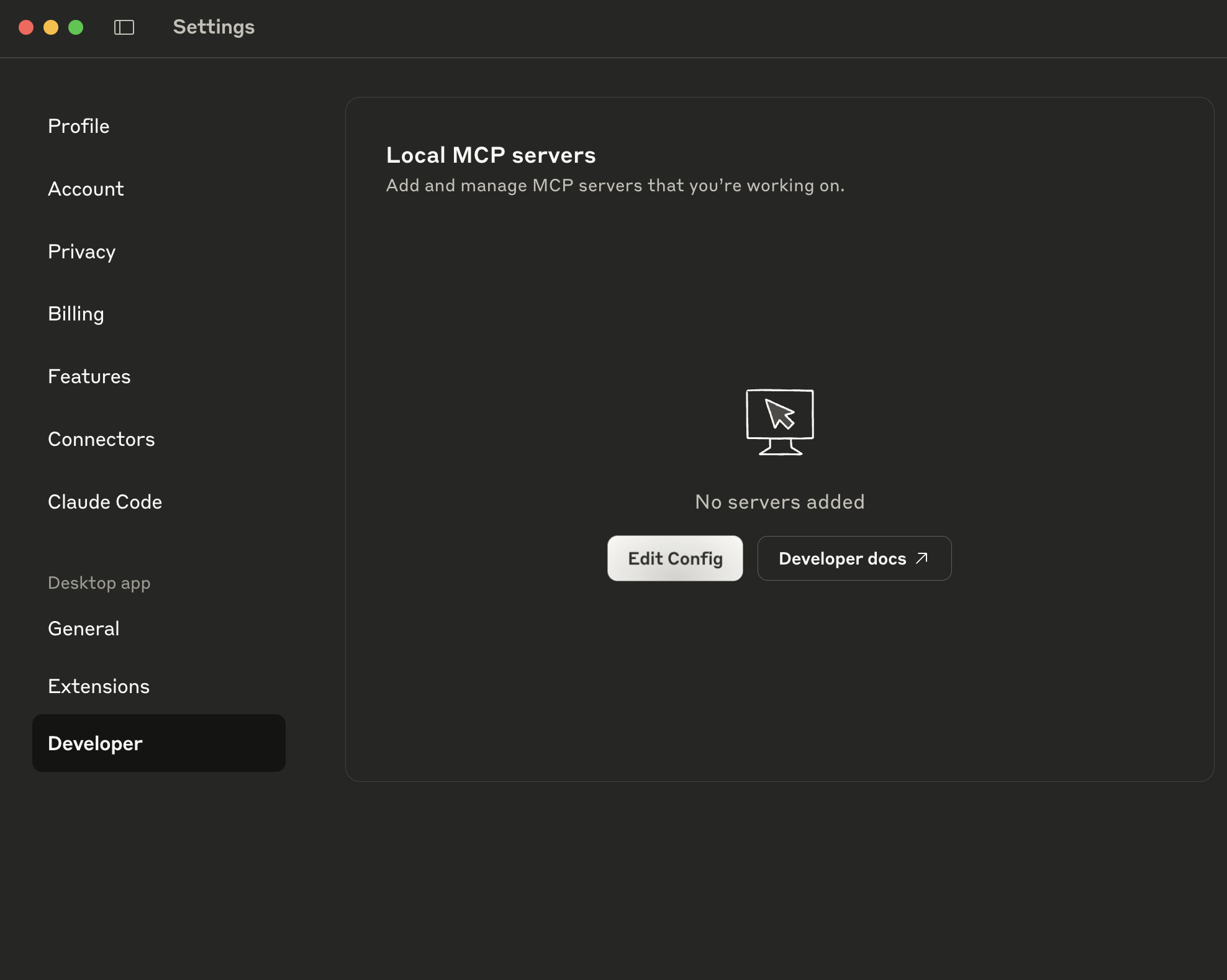 This will show your `claude_desktop_config.json` file:
* macOS: `~/Library/Application Support/Claude/claude_desktop_config.json`
* Windows: `%APPDATA%\Claude\claude_desktop_config.json`
Next, add MCP Server configuration to this file. Replace `your-api-key` with your actual API key. The `Token` prefix is optional — both `your-api-key` and `Token your-api-key` are accepted.
```json theme={null}
{
"mcpServers": {
"generect-api": {
"command": "npx",
"args": ["-y", "generect-ultimate-mcp@latest"],
"env": {
"GENERECT_API_BASE": "https://api.generect.com",
"GENERECT_API_KEY": "Token your-api-key",
"GENERECT_TIMEOUT_MS": "60000",
"MCP_DEBUG": "0"
}
}
}
}
```
Restart Claude Desktop to apply changes. After that you will see `generect-api` MCP as active in `Search and tools` dropdown.
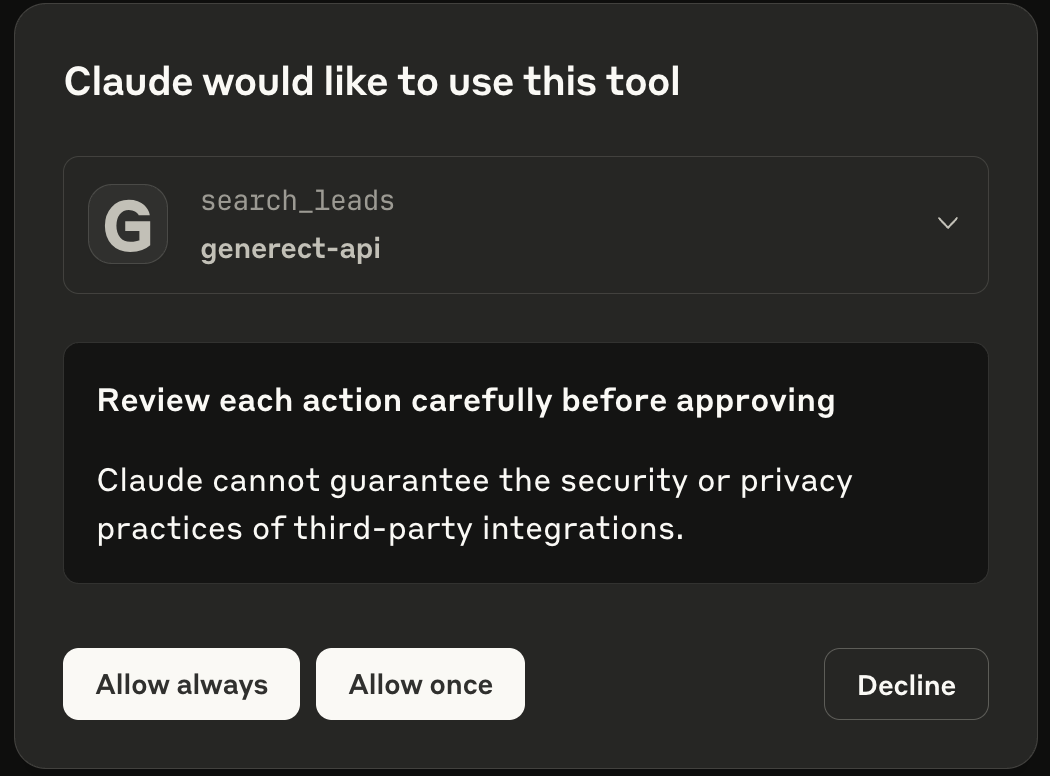
After some message where Claude decides to (for example) search leads, you will be prompted to allow the use of external tool.
This will show your `claude_desktop_config.json` file:
* macOS: `~/Library/Application Support/Claude/claude_desktop_config.json`
* Windows: `%APPDATA%\Claude\claude_desktop_config.json`
Next, add MCP Server configuration to this file. Replace `your-api-key` with your actual API key. The `Token` prefix is optional — both `your-api-key` and `Token your-api-key` are accepted.
```json theme={null}
{
"mcpServers": {
"generect-api": {
"command": "npx",
"args": ["-y", "generect-ultimate-mcp@latest"],
"env": {
"GENERECT_API_BASE": "https://api.generect.com",
"GENERECT_API_KEY": "Token your-api-key",
"GENERECT_TIMEOUT_MS": "60000",
"MCP_DEBUG": "0"
}
}
}
}
```
Restart Claude Desktop to apply changes. After that you will see `generect-api` MCP as active in `Search and tools` dropdown.
After some message where Claude decides to (for example) search leads, you will be prompted to allow the use of external tool.
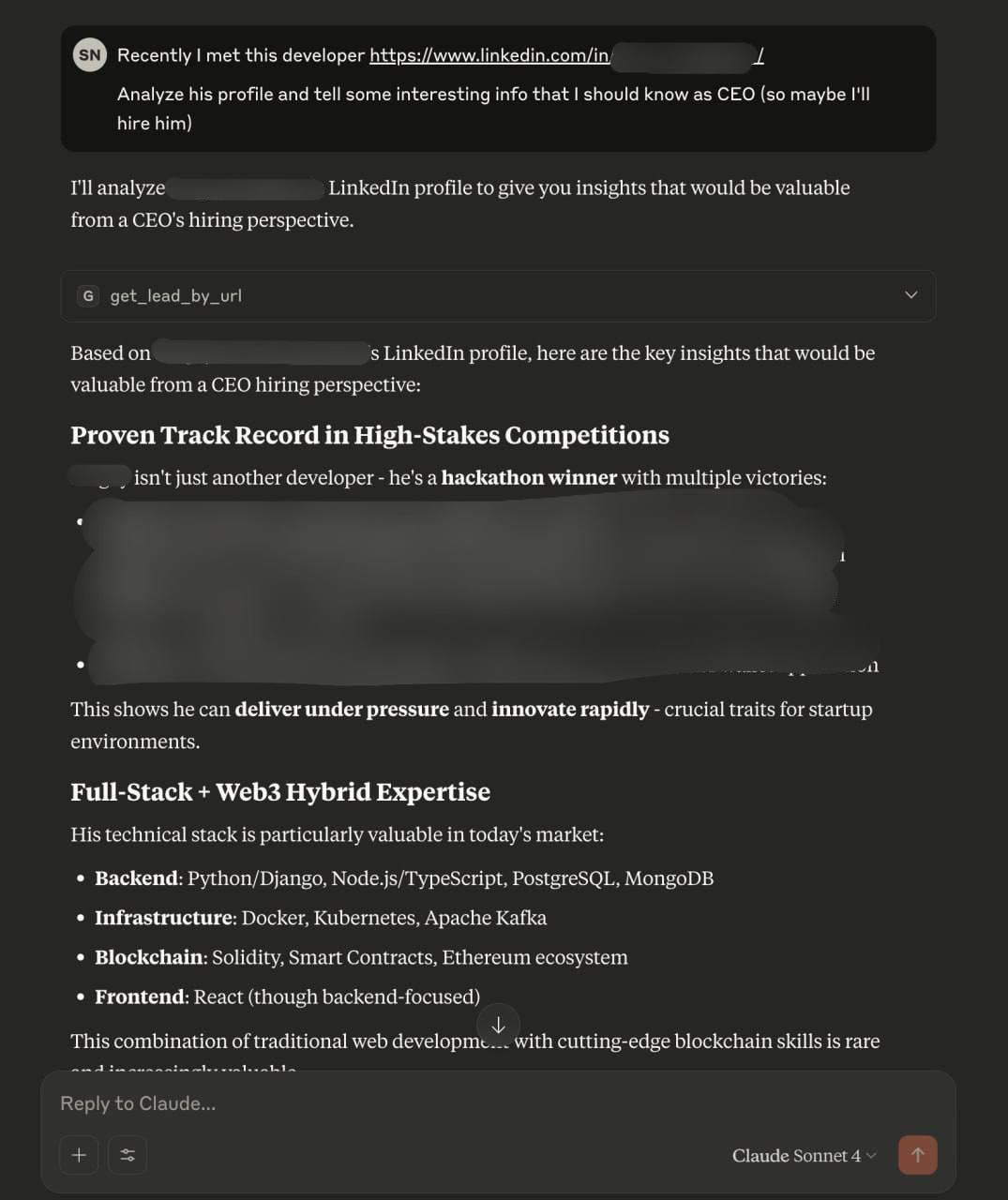
 Here is response of example, where Claude automaticlly analyzed LinkedIn profile (some sensitive information was hidden)
 ***
## How to use MCP with Cursor?
Use this button to add MCP **directly to Cursor IDE**:
***
## How to use MCP with Cursor?
Use this button to add MCP **directly to Cursor IDE**:

 Read [Cursor Docs](https://docs.cursor.com/en/context/mcp) for more info.
# Available Tools
The MCP integration provides access to the following `Generect API` functions:
* `search_leads`: Search for leads by ICP filters
* `search_companies`: Search for companies by ICP filters
* `generate_email`: Generate an email using first/last name and domain
* `get_lead_by_url`: Get LinkedIn lead by profile URL
* `health`: Quick health check against the API
Read [Cursor Docs](https://docs.cursor.com/en/context/mcp) for more info.
# Available Tools
The MCP integration provides access to the following `Generect API` functions:
* `search_leads`: Search for leads by ICP filters
* `search_companies`: Search for companies by ICP filters
* `generate_email`: Generate an email using first/last name and domain
* `get_lead_by_url`: Get LinkedIn lead by profile URL
* `health`: Quick health check against the API