

- Record cards on contacts and companies: Enrich contact, Enrich company, Find work email, Find phone.
- Workflow actions (HubSpot Professional and Enterprise): the same four lookups as steps in contact and company workflows, with a status you can branch on.
- Settings in HubSpot: your API key, enrichment rules and an optional daily spend cap.
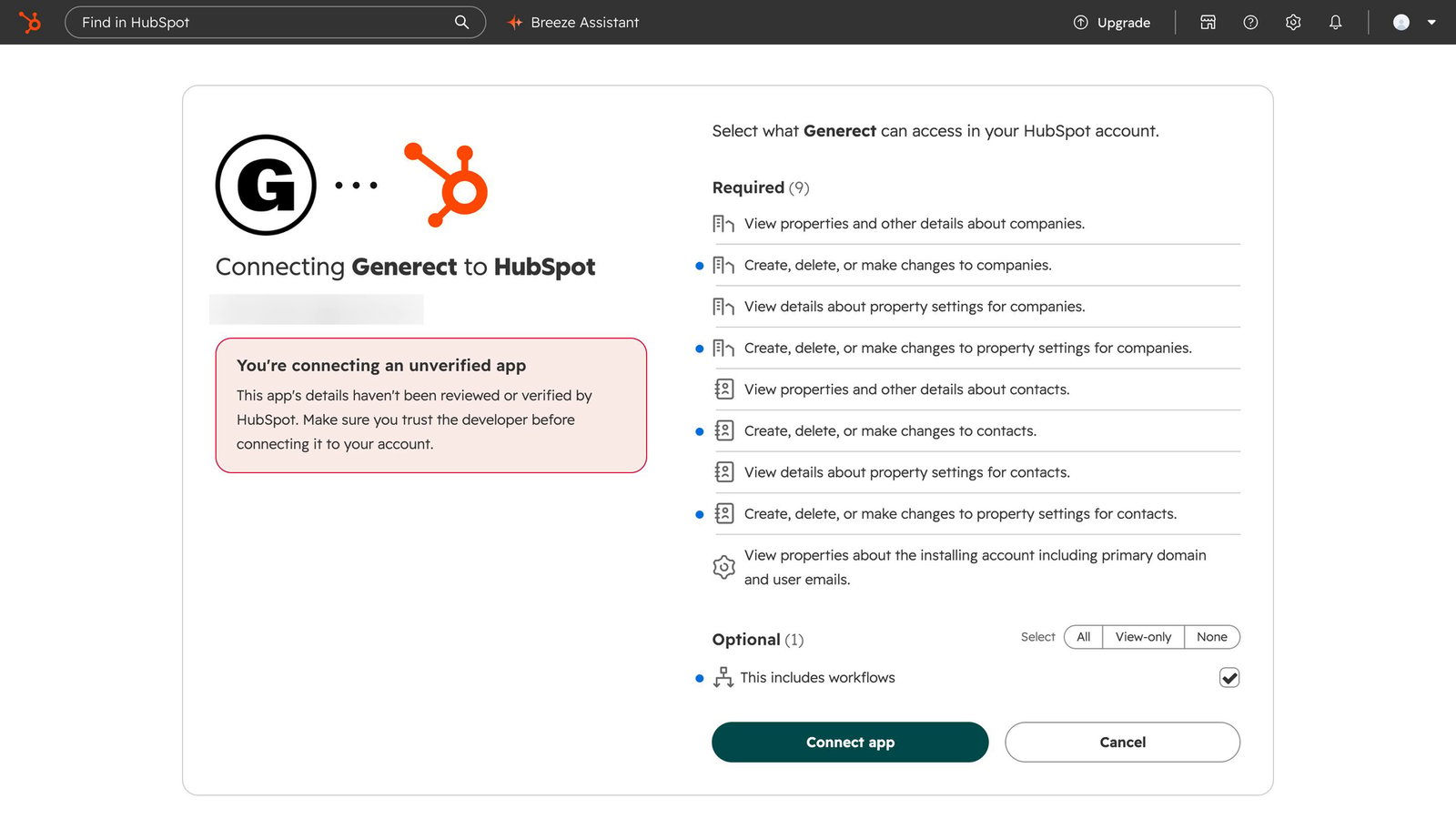
Generect for HubSpot is in early access and not yet listed in the HubSpot App Marketplace. Install it from the link below. Until HubSpot finishes its review, the install screen says “You’re connecting an unverified app”; this is expected.
Requirements
Install
- Open the install link: https://hubspot.generect.com/oauth/install.
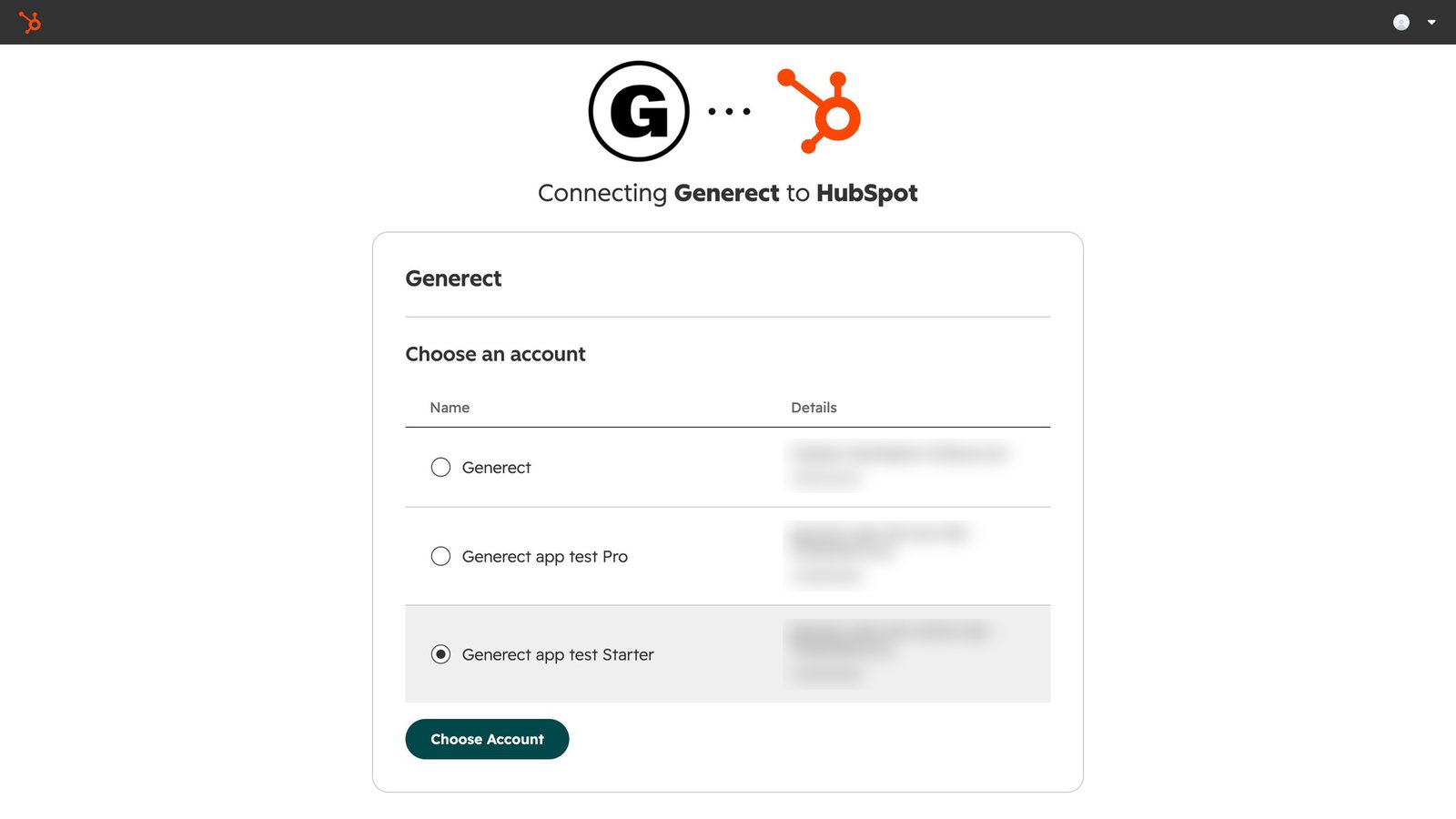
- Sign in to HubSpot if asked, and choose the HubSpot account to connect.
- Review the permissions and click Connect app.
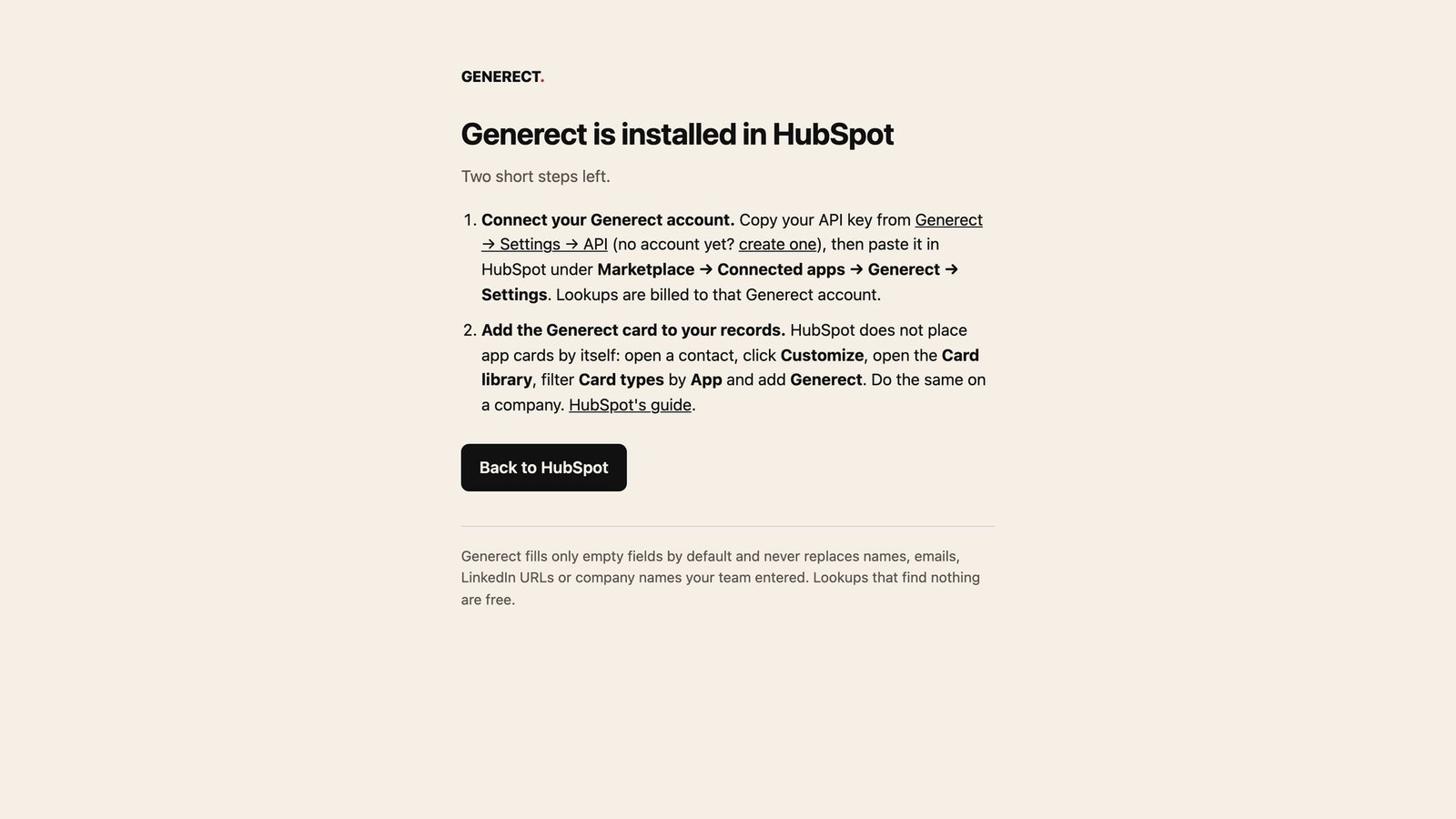
- After install you land on a page with the two remaining steps: connect your key and add the cards.
Connect your Generect key
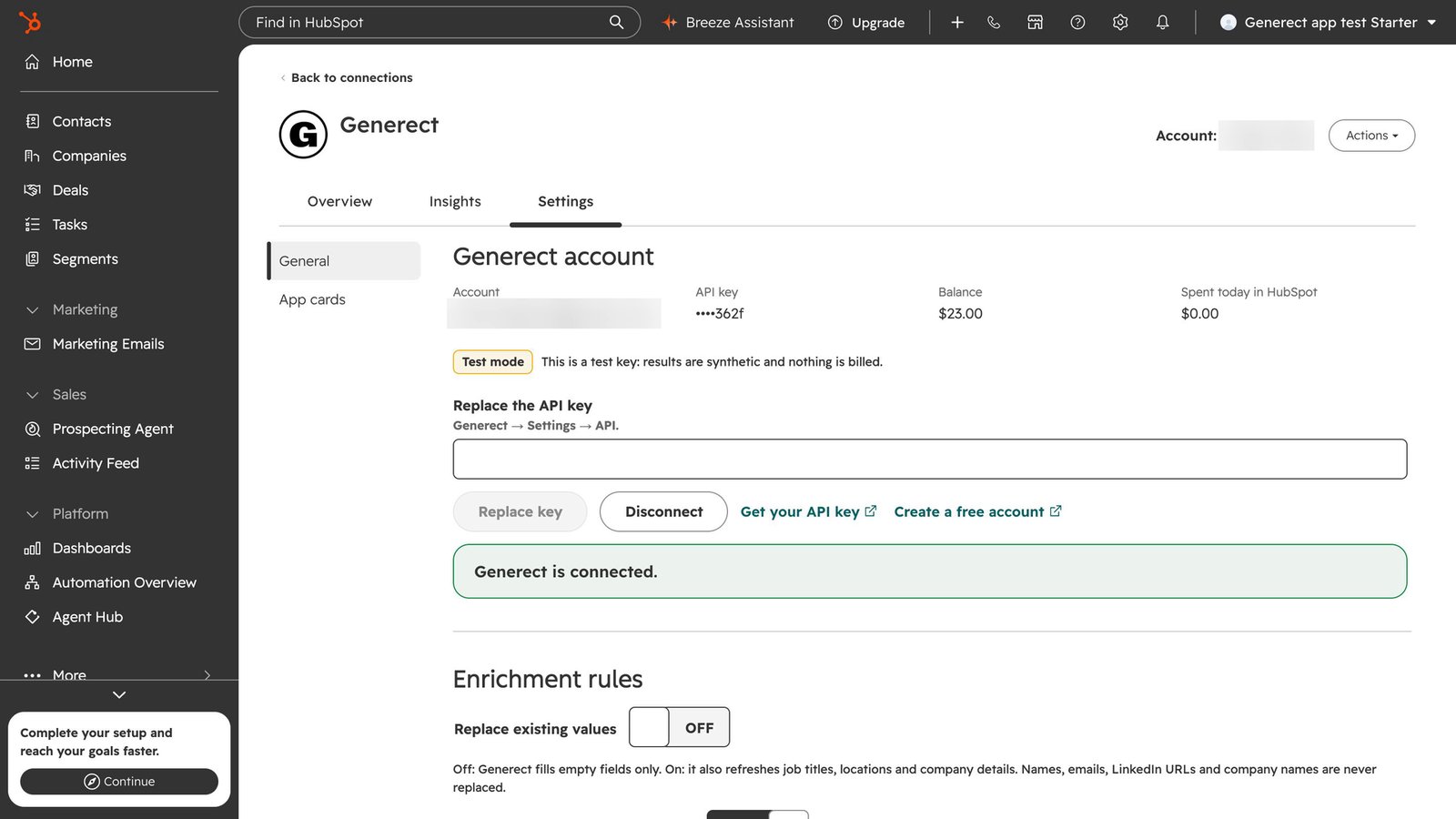
- In HubSpot, go to Marketplace → Connected apps → Generect → Settings.
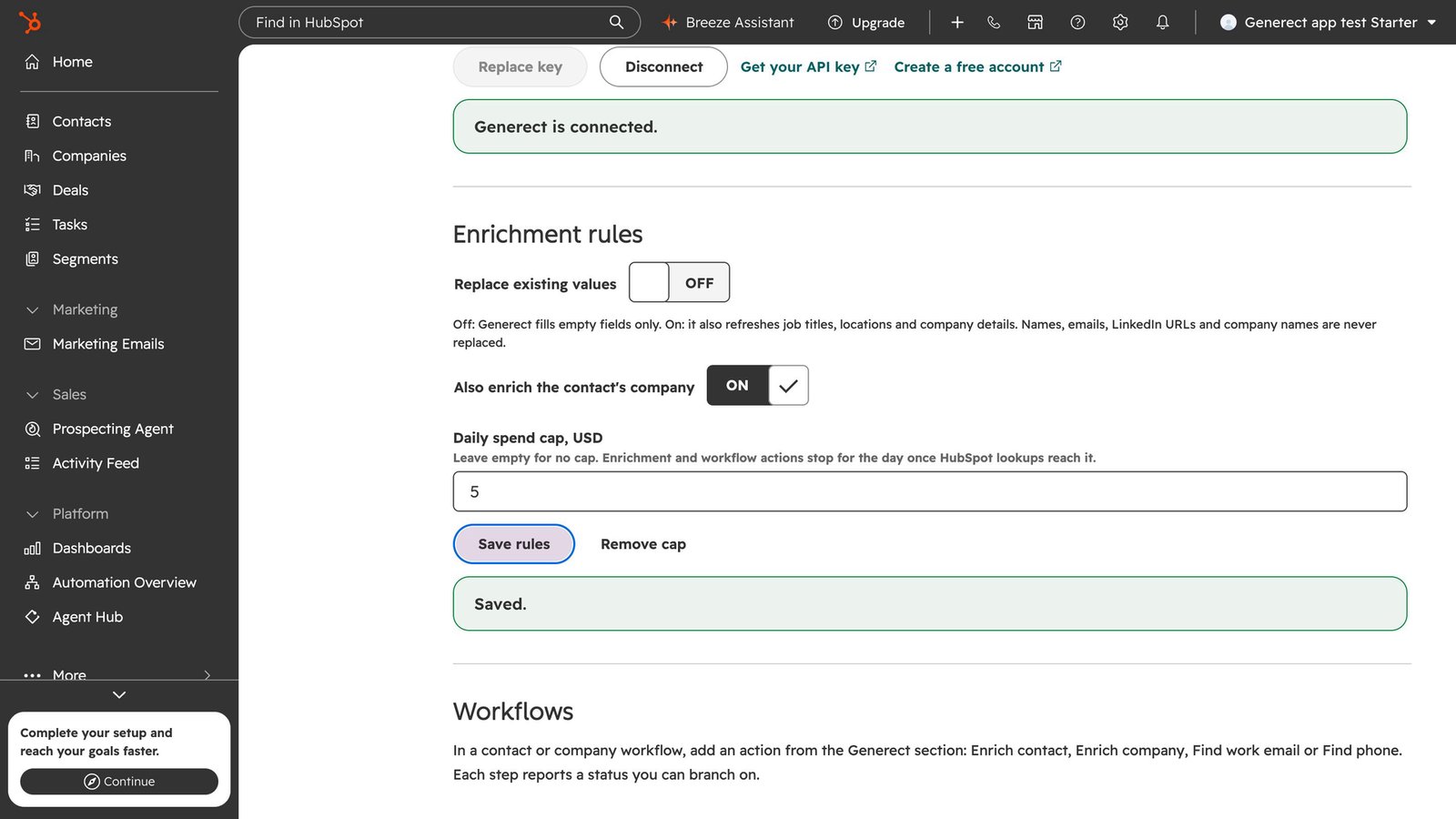
- Paste your Generect API key and click Connect. Generect checks the key, then shows only its last four characters, your balance and what was spent today.
Enrichment rules
Add the cards to your records
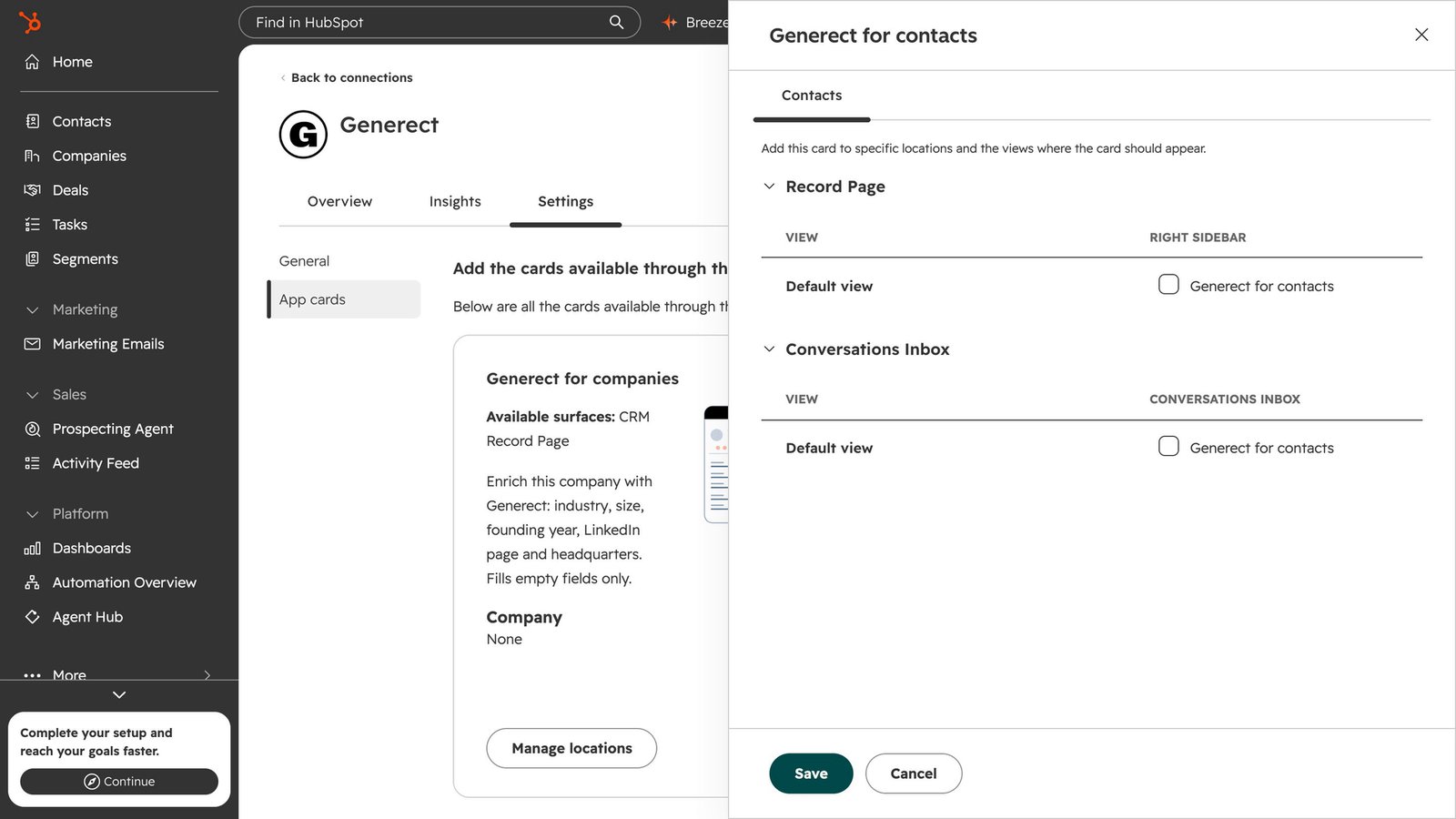
HubSpot does not place app cards by itself. Add them once:- Open the App cards tab in the Generect settings, or open any contact and click Customize.
- Add Generect for contacts to the contact record and Generect for companies to the company record.
Enrich by hand
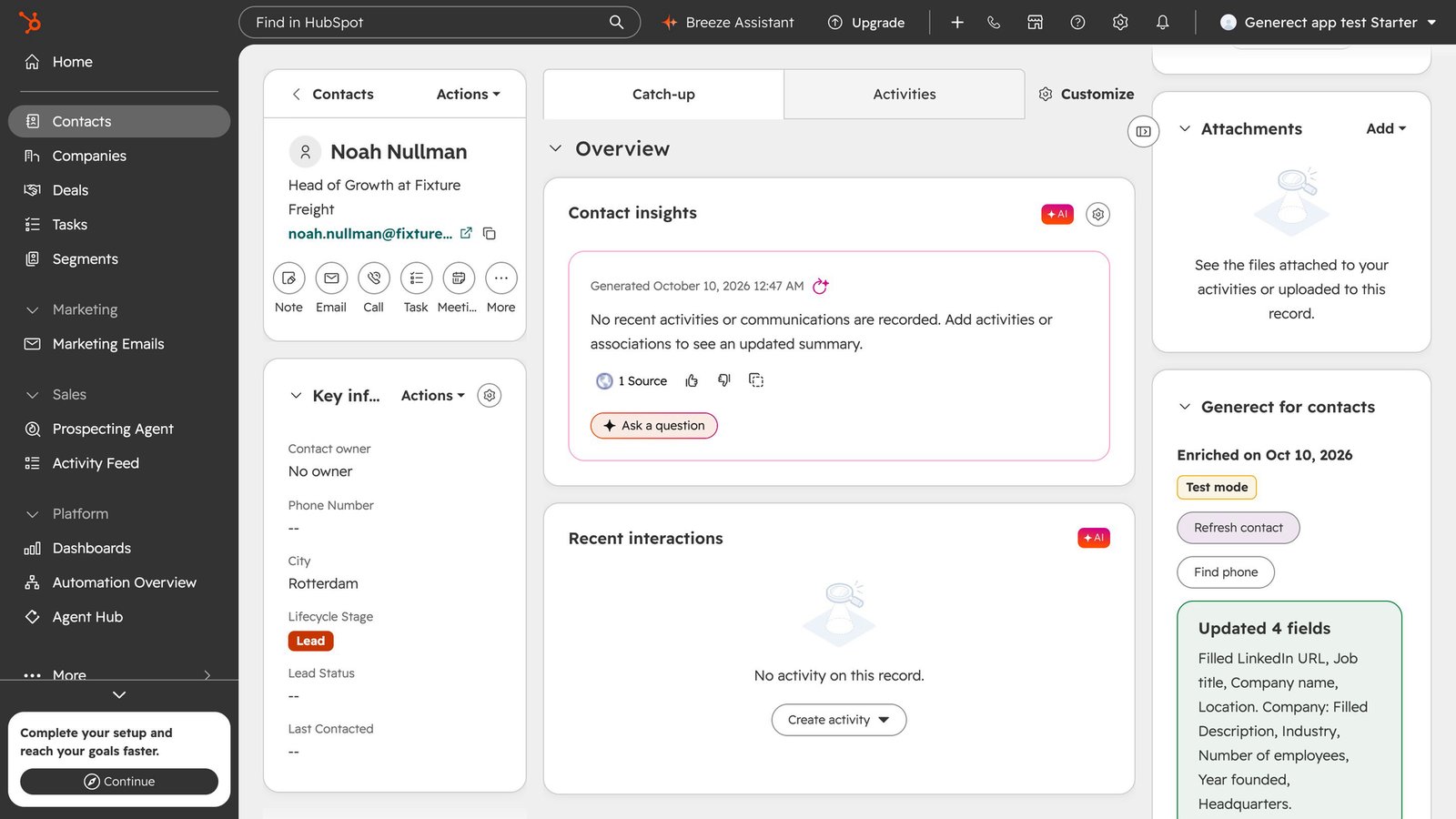
On a contact:- Enrich contact looks the person up by LinkedIn URL, then by email, and fills empty fields such as LinkedIn URL, job title, company name and location. With “Also enrich the contact’s company” on, the company is enriched too.
- Find work email finds and verifies a work email from the LinkedIn URL, or from first name, last name and company website. Pattern guesses are never written.
- Find phone fills an empty phone field: mobile numbers go to Mobile phone, others to Phone.
Use in workflows
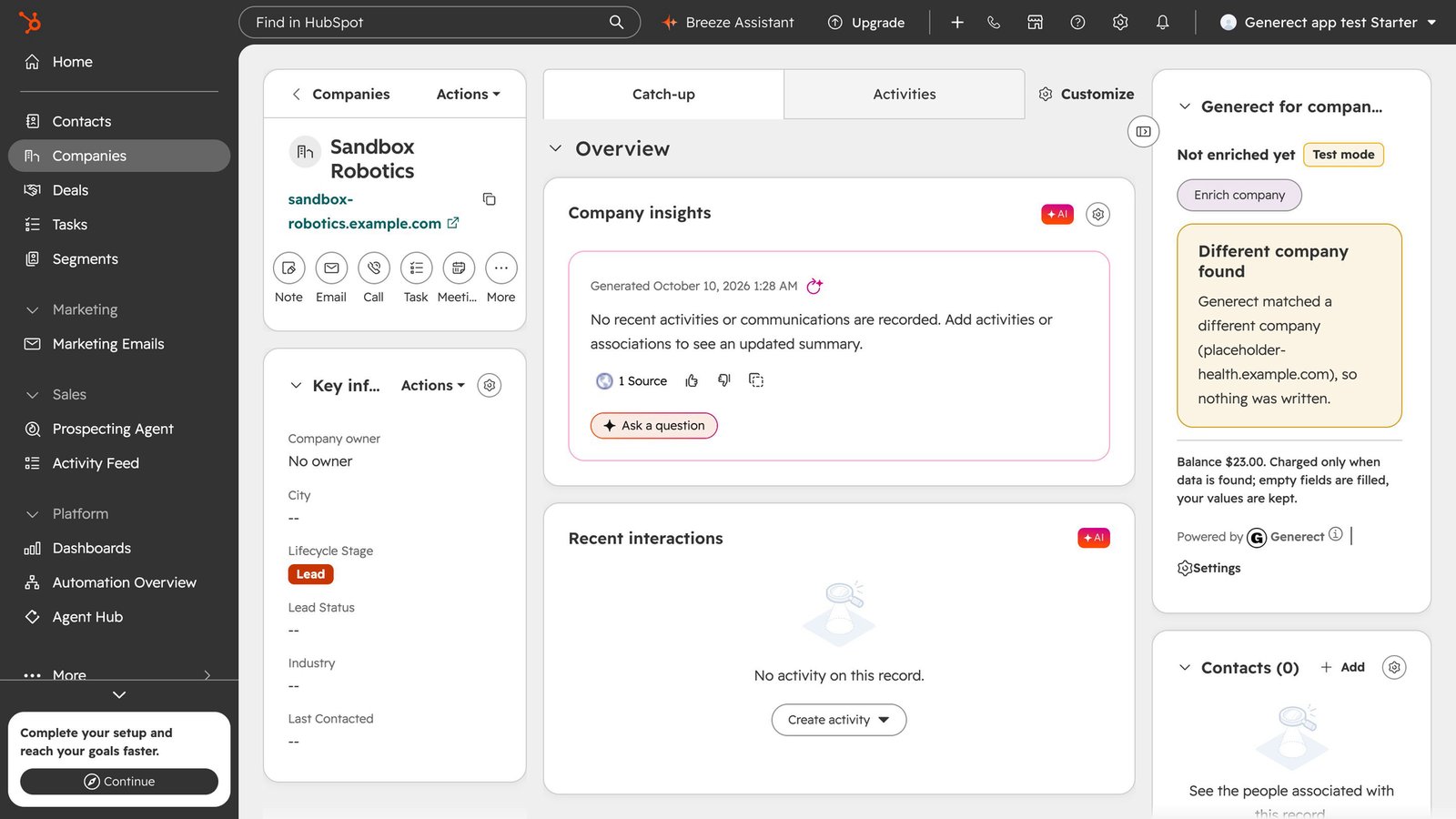
In a contact or company workflow, add an action from the Generect section: Enrich contact, Enrich company, Find work email or Find phone.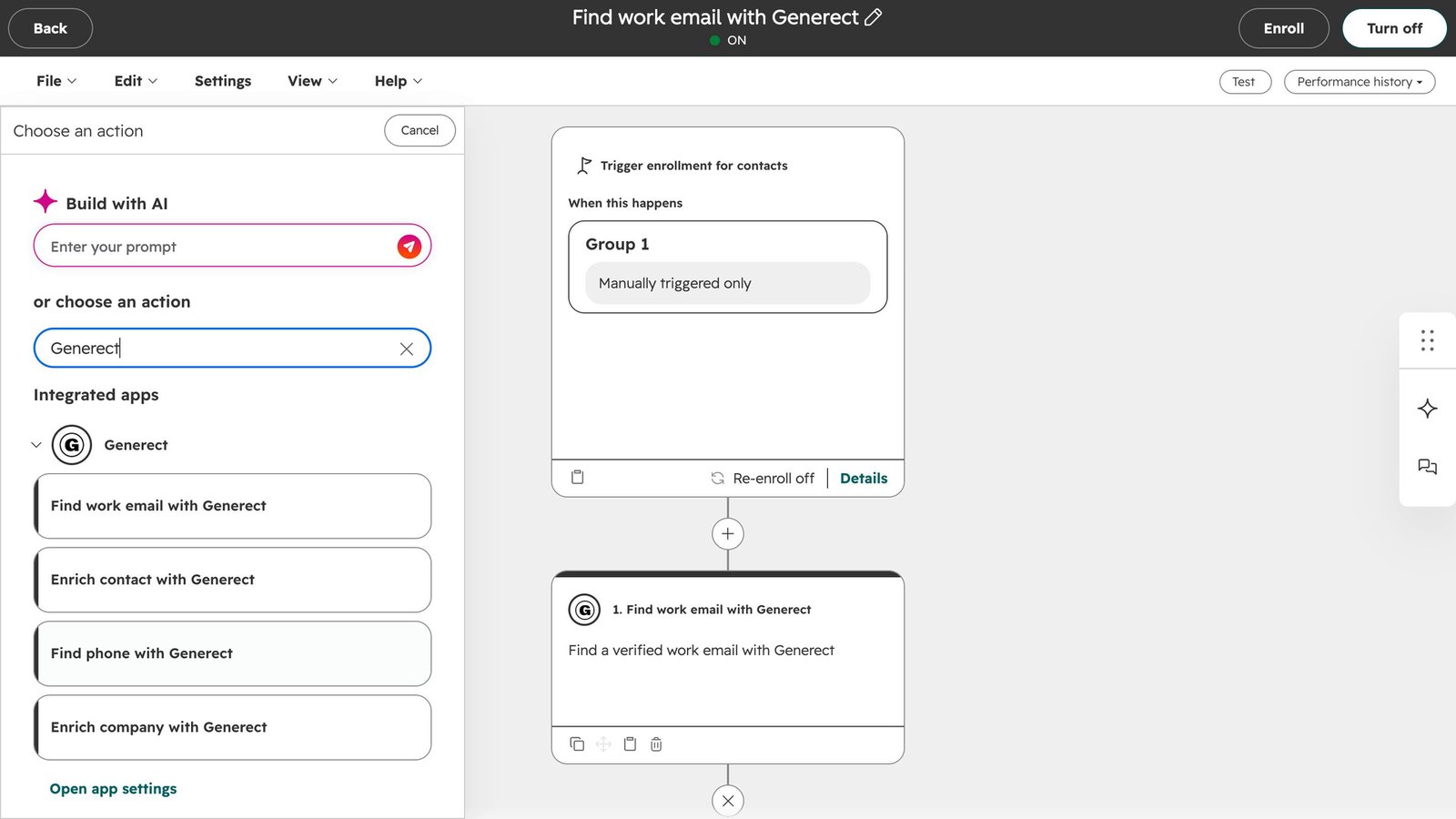
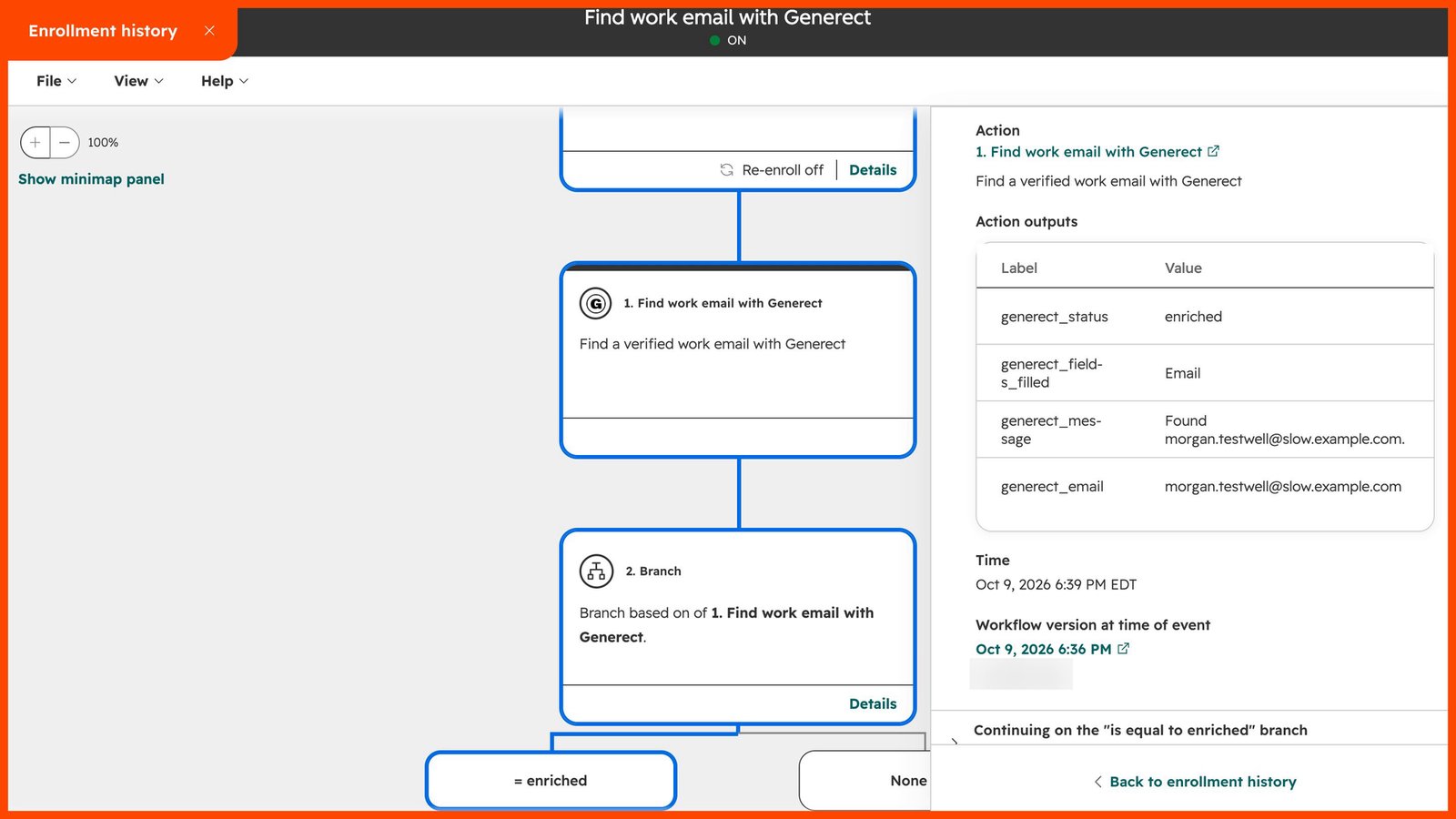
Statuses: Enriched, Nothing to change, No match, Skipped: enriched recently, Skipped: different company, Not enough to look up, Generect not connected, Generect key rejected, Generect balance empty, Daily spend cap reached, Rate limited, App not installed, Error, Interrupted by a restart, Expired in queue.
A lookup that takes longer than a few seconds does not fail: Generect asks HubSpot to wait and completes the step when the result arrives. The run log shows the output values and the branch taken.
Billing
Lookups are billed to the Generect account whose key is connected, at your Generect prices, and only when data is found. A lookup that finds nothing is free. Top up and see usage at app.generect.com.Disconnect
In Connected apps → Generect → Settings, click Disconnect. Your key is deleted from Generect’s servers; your rules stay. Cards and workflow steps stop looking anything up (workflow steps report Generect not connected) until you connect a key again.Uninstall
In Connected apps → Generect → Settings, click Uninstall Generect and confirm. This is the recommended way: it deletes your Generect key right away. (You can also uninstall from HubSpot’s Connected apps list; Generect then deletes your key and tokens the next time HubSpot refuses its access.)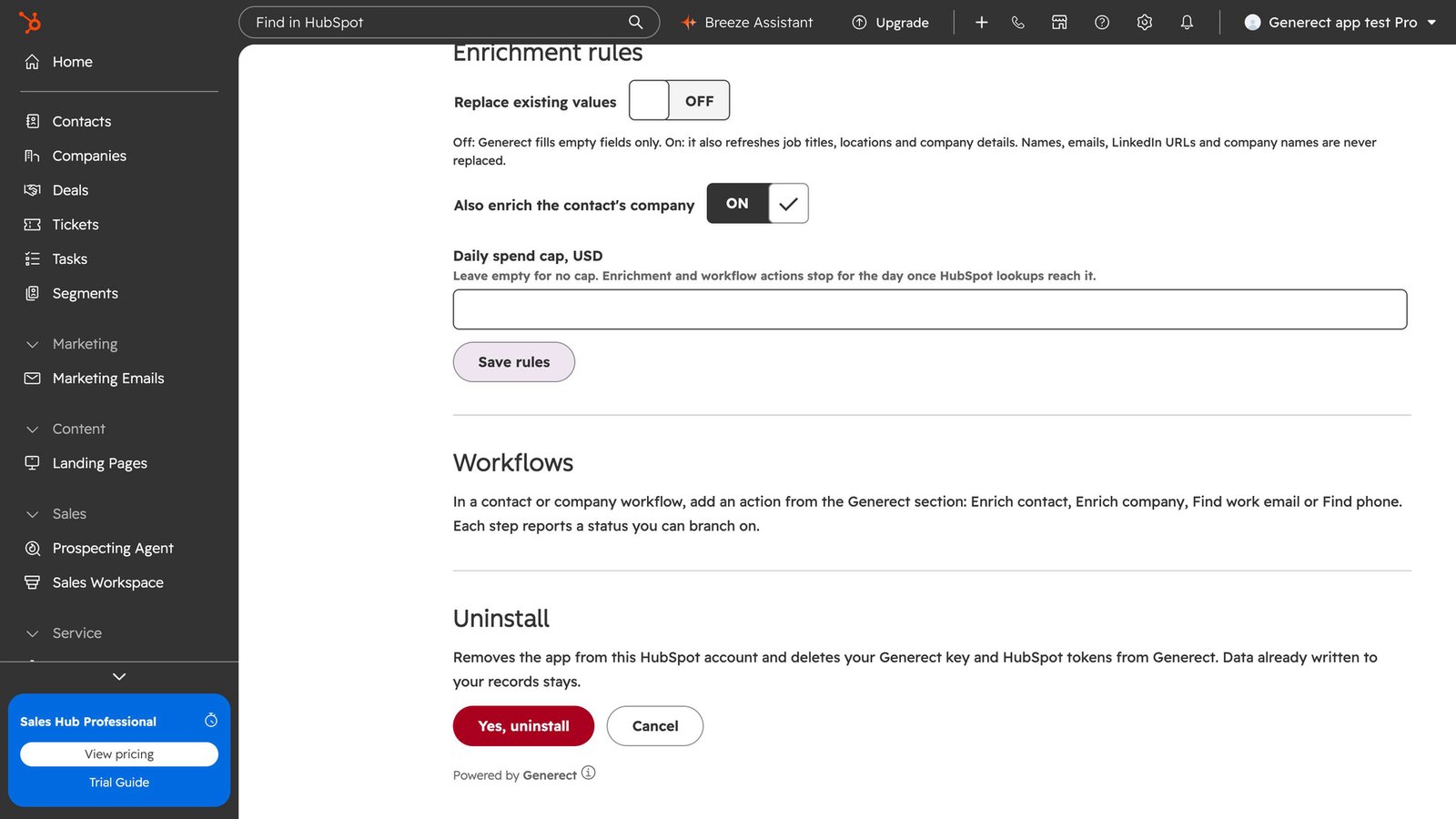
- Generect deletes your API key and your HubSpot access tokens from its servers.
- Everything already written to your records stays in HubSpot: the values Generect filled and the Generect properties.
- Generect steps left in your workflows can no longer look anything up; remove them.
- To use Generect again, reinstall from the same link and add the cards back.