> ## Documentation Index
> Fetch the complete documentation index at: https://docs.generect.com/llms.txt
> Use this file to discover all available pages before exploring further.
# ICP Search
> Finding companies and contacts that match your Ideal Customer Profile
## What Is ICP Search and **How it works**
**Definition:**\
ICP Search is a tool for finding companies and contacts that perfectly match your Ideal Customer Profile. It allows you to build a highly targeted dataset based on real company and contact attributes.
**How it works:**
1. You define criteria for companies or leads using filters.
* **Company filters include:**\
Industry, Location, Headcount, Company Name, Founded Year, Website Status
* **Lead filters include:**\
Job Title, Personas, Skills, Location, Number of Leads per Company, Number of Connections, Data Accuracy Period
2. Generect searches through cached databases or live data depending on availability.
3. The system returns a refined list of companies or contacts that match your ICP.
4. You receive a set of verified leads ready for outreach.
**Key Benefits:**
* **Accurate targeting:** results match your ICP parameters as closely as possible.
* **Flexible filtering:** combine multiple criteria to shape an exact company or contact profile.
* **Fresh data:** Generect returns cached or live results depending on what's available.
* **Exclude lists:** remove unwanted companies or existing clients from your results.
* **Custom Search:** use your own LinkedIn profiles, domains, or company lists.
## How to Build an ICP Search Query
### Step 1: Start a New Search
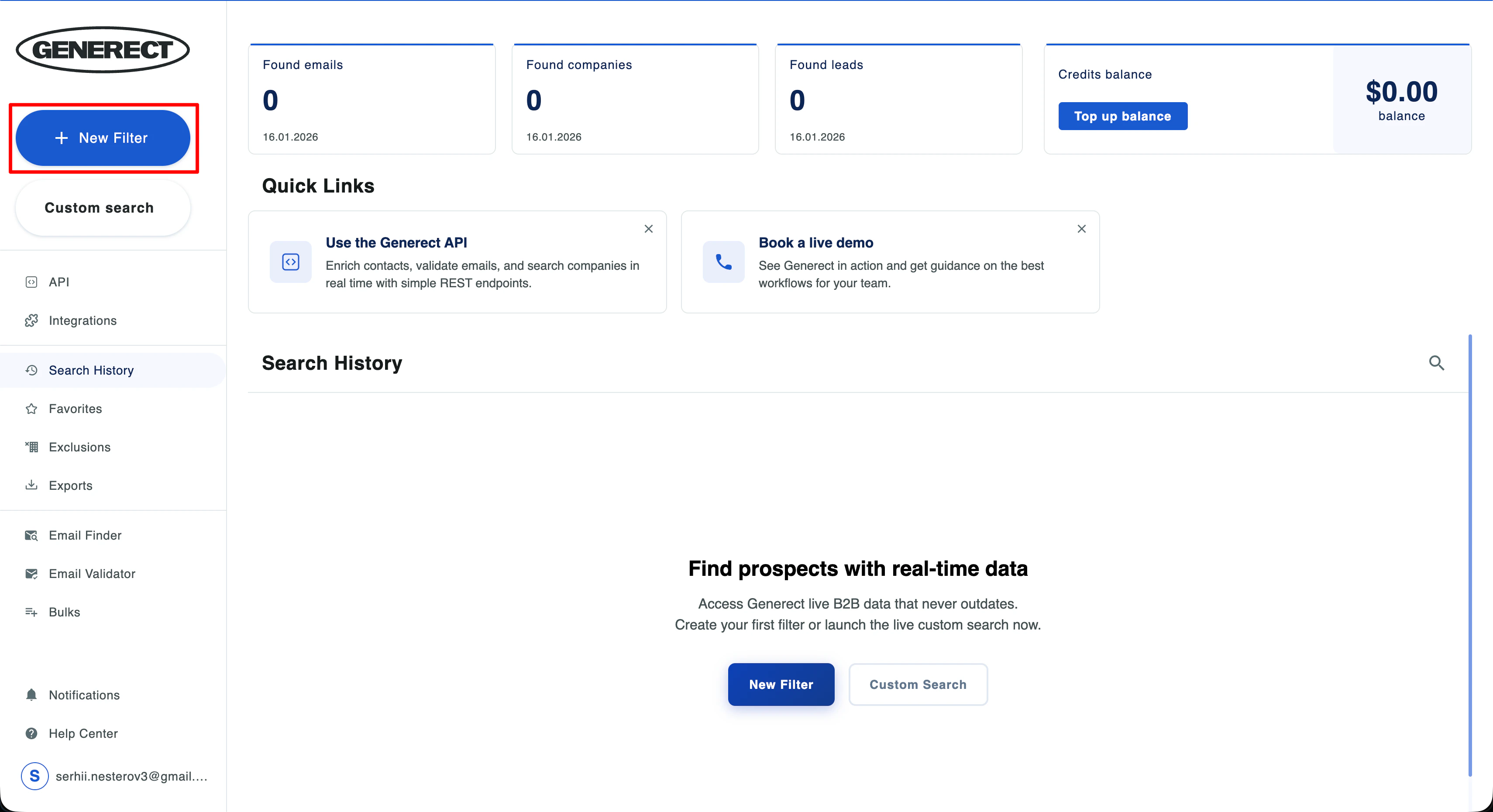 In the Search section, click **New filter**.\
This opens the full list of filters you can use to build your ICP.
### Step 2: Choose your filters
All filters are universal and they work for both companies and leads.
* **Job Title** – search for specific roles
* **Personas** – predefined role templates (Executive, Sales, Engineering, Marketing) that speed up ICP setup
* **Skills** – find people with specific expertise (Python, SalesOps, Product Management, etc.)
* **Number of leads per company** – limit contact volume per company
* **Number of connections** – helpful for B2B outreach (more active profiles)
* **Data accuracy period** – filter by freshness of data
* **Company name** – useful for competitor lists or known targets
* **Location** – for companies or contacts
* **Industry** – narrow down your market segment
* **Headcount** – company size
* **Founded year** – young or mature companies
* **Specialities** – company expertise areas (Legal Services, IT Consulting, Manufacturing)
* **Website status** – active/inactive sites
You can apply one filter or combine several – the system supports any configuration.
### Step 3: Run the search
In the Search section, click **New filter**.\
This opens the full list of filters you can use to build your ICP.
### Step 2: Choose your filters
All filters are universal and they work for both companies and leads.
* **Job Title** – search for specific roles
* **Personas** – predefined role templates (Executive, Sales, Engineering, Marketing) that speed up ICP setup
* **Skills** – find people with specific expertise (Python, SalesOps, Product Management, etc.)
* **Number of leads per company** – limit contact volume per company
* **Number of connections** – helpful for B2B outreach (more active profiles)
* **Data accuracy period** – filter by freshness of data
* **Company name** – useful for competitor lists or known targets
* **Location** – for companies or contacts
* **Industry** – narrow down your market segment
* **Headcount** – company size
* **Founded year** – young or mature companies
* **Specialities** – company expertise areas (Legal Services, IT Consulting, Manufacturing)
* **Website status** – active/inactive sites
You can apply one filter or combine several – the system supports any configuration.
### Step 3: Run the search
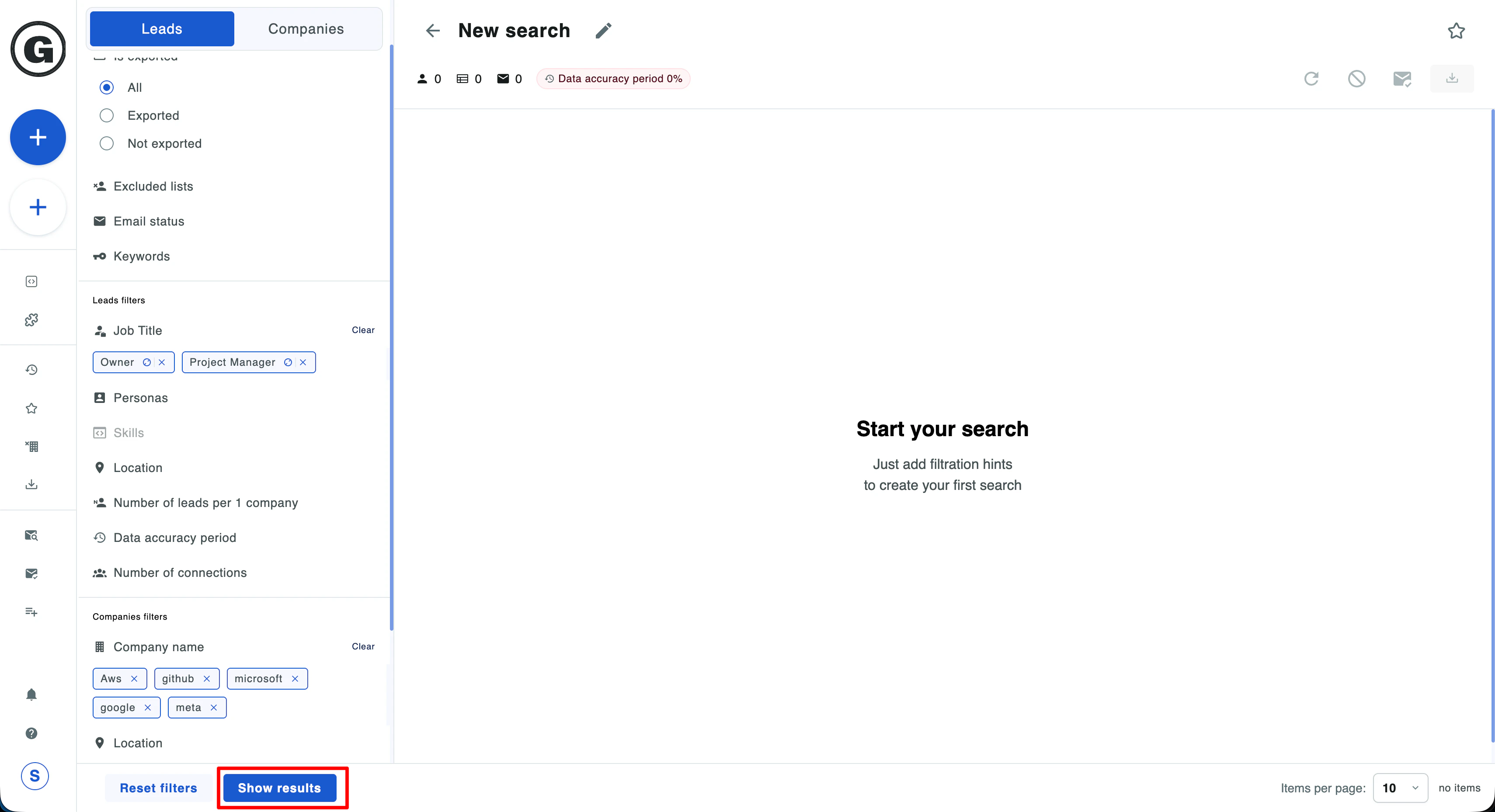 * Start the search
* Review your results
* Adjust filters as needed
* Reveal contacts to get verified emails and phone numbers
### Step 4: Choose Leads or Companies view
You can view your results in two modes:
* Start the search
* Review your results
* Adjust filters as needed
* Reveal contacts to get verified emails and phone numbers
### Step 4: Choose Leads or Companies view
You can view your results in two modes:
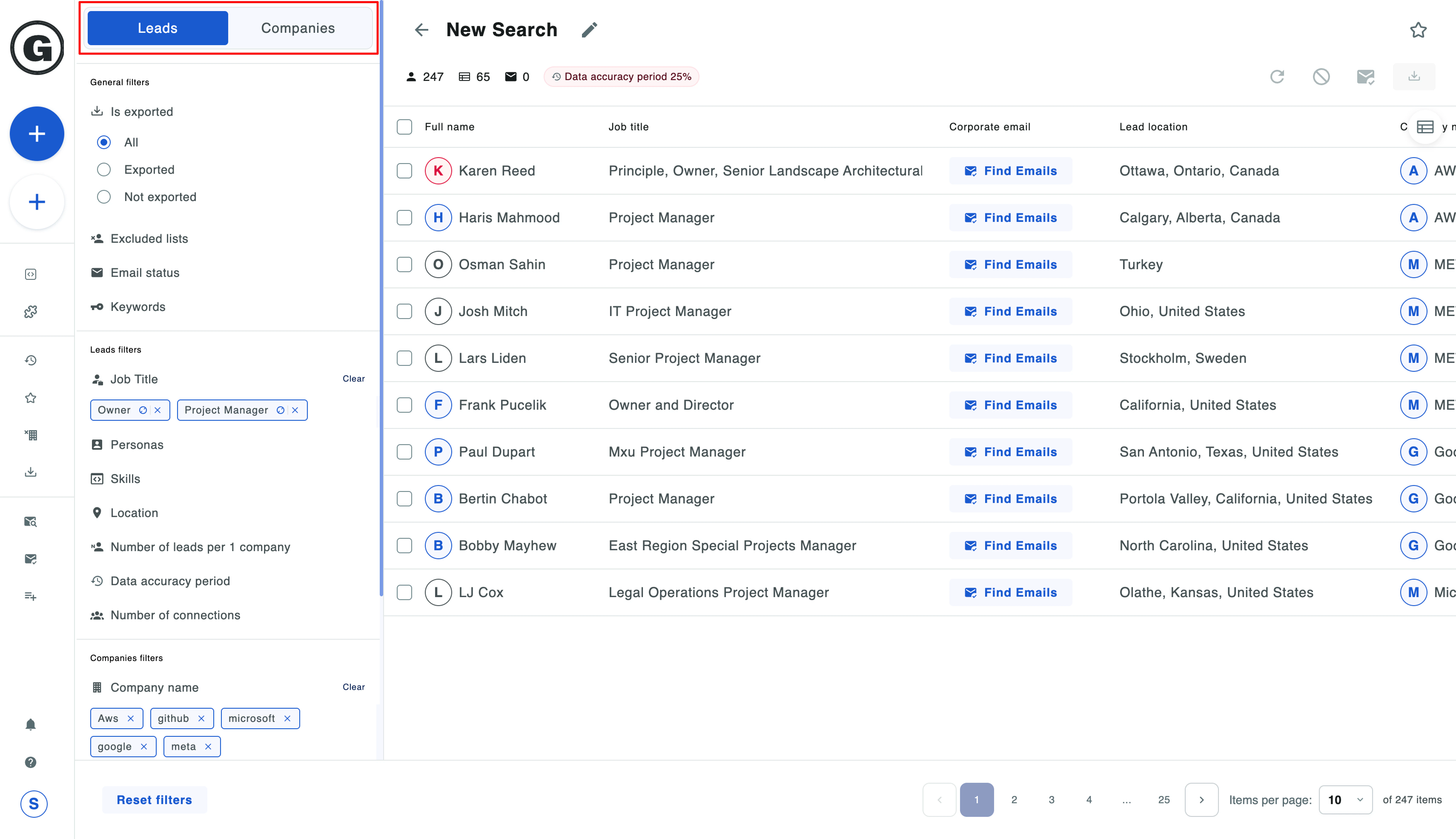 * **Leads** – a list of contacts that match your criteria
* **Companies** – a list of companies that match the same filters
Both use the same ICP filters, and switching between them keeps your configuration intact.
See a real-world example of building an ICP search
## Advanced Filters for ICP Search
Advanced filters allow you to build a more precise ICP, narrow your dataset to the most relevant companies and leads, and reuse your configurations later.
### Personas (Reusable Role Templates)
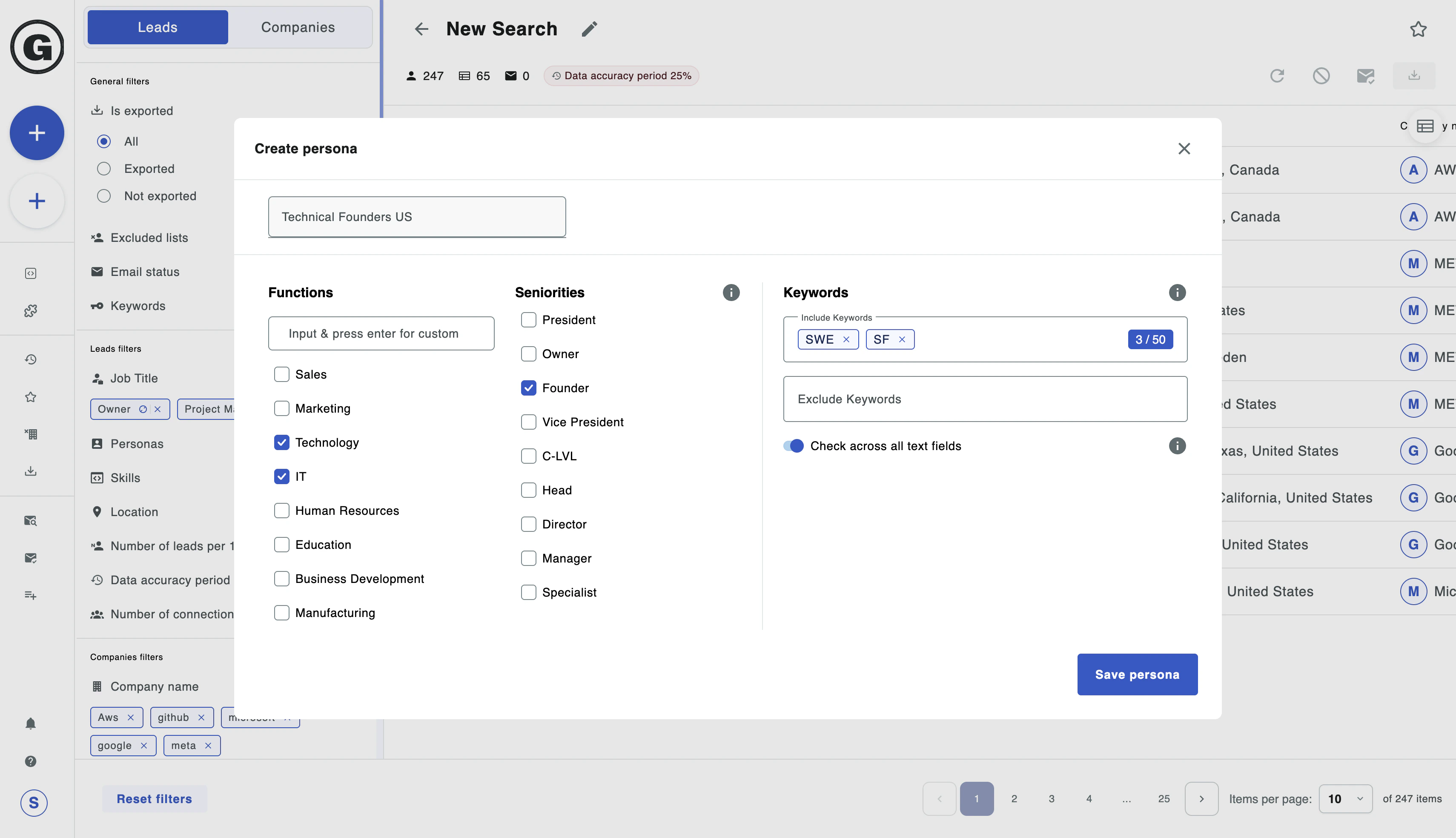
A **persona** is more than a set of job titles – it's a **saved role template** you can use in any ICP Search.
A persona may include:
* **Functions:**\
Sales, Marketing, Technology, IT, HR, Education, Business Development, Manufacturing, or custom functions.
* **Seniorities:**\
President, Owner, Founder, VP, C-Level, Head, Director, Manager, Specialist.
* **Keywords (include/exclude):**\
For fine-tuning profile descriptions or job titles.
**Examples of personas:**
* "Sales Leadership EU"
* "Technical Founders US"
* "HR Directors Global"
* **Leads** – a list of contacts that match your criteria
* **Companies** – a list of companies that match the same filters
Both use the same ICP filters, and switching between them keeps your configuration intact.
See a real-world example of building an ICP search
## Advanced Filters for ICP Search
Advanced filters allow you to build a more precise ICP, narrow your dataset to the most relevant companies and leads, and reuse your configurations later.
### Personas (Reusable Role Templates)
A **persona** is more than a set of job titles – it's a **saved role template** you can use in any ICP Search.
A persona may include:
* **Functions:**\
Sales, Marketing, Technology, IT, HR, Education, Business Development, Manufacturing, or custom functions.
* **Seniorities:**\
President, Owner, Founder, VP, C-Level, Head, Director, Manager, Specialist.
* **Keywords (include/exclude):**\
For fine-tuning profile descriptions or job titles.
**Examples of personas:**
* "Sales Leadership EU"
* "Technical Founders US"
* "HR Directors Global"
 Learn how SDRs save time with reusable persona templates
### Skills & Specialities (Expertise-Based Filtering)
Search by skills of individuals or by the specialisation of companies.
**Skill examples:** Python, Cloud, Prospecting, SQL, DevOps, SalesOps\
**Specialities examples:** IT Consulting, Legal Services, Education, Manufacturing
Useful when searching for contacts with specific expertise.
### Profile & Data Quality Filters
* **Data accuracy period:** how fresh the data should be
* **Number of connections:** approximate activity level of the profile
* **Number of leads per company:** control dataset density
Helps improve result quality and reduce noise.
### Exclude Lists
Exclude companies or leads you don't want to see in your results.
You can upload a CSV with:
* existing customers
* competitors
* unwanted segments
The system automatically removes them from your dataset.
Deep dive into using exclude lists effectively
### Custom Search (Advanced Manual Targeting)
Use your own data sources:
* LinkedIn profiles
* Domains
* Company names
Perfect for enrichment workflows, CRM data processing, or validating segments from Sales Navigator.
Learn how SDRs save time with reusable persona templates
### Skills & Specialities (Expertise-Based Filtering)
Search by skills of individuals or by the specialisation of companies.
**Skill examples:** Python, Cloud, Prospecting, SQL, DevOps, SalesOps\
**Specialities examples:** IT Consulting, Legal Services, Education, Manufacturing
Useful when searching for contacts with specific expertise.
### Profile & Data Quality Filters
* **Data accuracy period:** how fresh the data should be
* **Number of connections:** approximate activity level of the profile
* **Number of leads per company:** control dataset density
Helps improve result quality and reduce noise.
### Exclude Lists
Exclude companies or leads you don't want to see in your results.
You can upload a CSV with:
* existing customers
* competitors
* unwanted segments
The system automatically removes them from your dataset.
Deep dive into using exclude lists effectively
### Custom Search (Advanced Manual Targeting)
Use your own data sources:
* LinkedIn profiles
* Domains
* Company names
Perfect for enrichment workflows, CRM data processing, or validating segments from Sales Navigator.