> ## Documentation Index
> Fetch the complete documentation index at: https://docs.generect.com/llms.txt
> Use this file to discover all available pages before exploring further.
# AI Corporate Email Finder
> Generate and validate corporate email addresses using AI
## How the AI Corporate Email Finder Works
In Generect, the Email Finder is a tool that:
1. Generates a corporate email address based on a person's name and company domain.
2. Uses AI-driven pattern prediction to build the most likely email format.
3. Automatically validates the generated email via SMTP.
**How it works:**
You provide a full name and a company domain.\
The system generates an email using the most common corporate patterns:
* [firstname.lastname@company.com](mailto:firstname.lastname@company.com)
* [firstname@company.com](mailto:firstname@company.com)
* [f.lastname@company.com](mailto:f.lastname@company.com)
* [firstnamelastname@company.com](mailto:firstnamelastname@company.com)
The email is then checked via SMTP – the company's mail server confirms whether the address is deliverable.
The result returns with one of the following statuses:
* **Valid**
* **Invalid**
* **SMTP** (server does not provide full validation, but address structure is correct)
**What you get:**
* A ready-to-use corporate email address
* A validation status (Valid / Invalid / SMTP)
* The result saved in your **Finder History**
## How to Use Email Finder in Search Mode
### Finding emails directly from ICP Search results
Inside the ICP Search results (Leads table), you can generate corporate emails instantly.
Simply click **Find Emails** next to any lead.\
Generect automatically:
* extracts the lead's first and last name
* identifies their company domain
* builds the most likely email pattern
* validates it via SMTP
All generated results appear immediately in the same table – no extra steps required.
### Bulk generation inside ICP Search results
You can click **Find Emails** for as many leads as you like.
After generation, every lead receives a status:
* **Valid**
* **Invalid**
* **Not opened** (email hasn't been revealed yet)
You can filter results using **Email status** and export only leads with valid corporate emails.
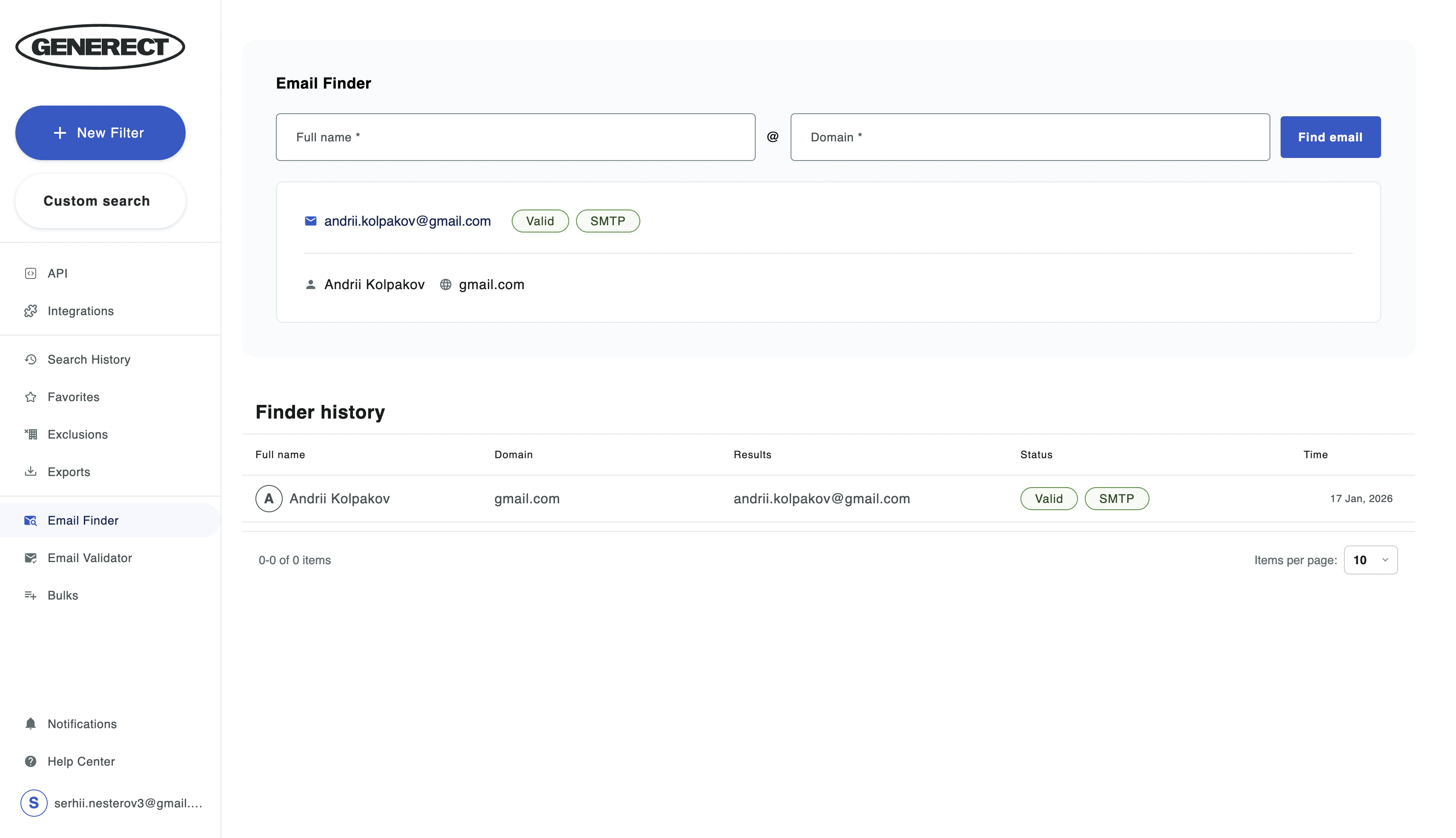
### How to Use Email Finder in separeted tab
1. Go to **Email Finder** in Side-Bar
2. Enter the lead's full name and email domain
3. Click **Find Email**
4. The result will appear in the table
 ## Bulk Email Finder
If you need to find many email addresses at once:
1. Go to **Bulks → Bulk email finder**
2. Upload a CSV or XLSX file containing:
* *First name*
* *Last name*
* *Company domain*
3. The system processes each row (pricing is shown in the interface).
4. Results appear as a structured table.
For each entry, Generect returns:
* a generated corporate email
* a status: **Valid / Invalid / Catch-all / Unknown / SMTP**
You can export the full results file with one click.
Email Finder only charges when a valid email is found. Invalid results are free.
## Bulk Email Finder
If you need to find many email addresses at once:
1. Go to **Bulks → Bulk email finder**
2. Upload a CSV or XLSX file containing:
* *First name*
* *Last name*
* *Company domain*
3. The system processes each row (pricing is shown in the interface).
4. Results appear as a structured table.
For each entry, Generect returns:
* a generated corporate email
* a status: **Valid / Invalid / Catch-all / Unknown / SMTP**
You can export the full results file with one click.
Email Finder only charges when a valid email is found. Invalid results are free.